
[Just Dial Extractor] How to Extract Data (Phones & Emails) from JustDial.com

Justdial.com is the leading directory of companies in India. It is a site well structured that facilitate the search for companies and professionals located in India. If you are looking for a way to extract data from JUST DIAL, in this page you will find the best software solution. With this software you will be able to scan and retrieve informations from JustDial.com?

The software able to scan Just Dial website and also a lot of other “yellow pages” directories is Yellow Leads Extractor. It is a powerful Yellow Pages Scraper and YELP scraper that capture all companies data from public directories. Now it supports also JUSTDIAL.

Thanks to Y-Leads Extractor you can extract data from Just Dial like businesses name, address, phone number as well as emails. Check this Youtube Video Tutorial to see how it works!

Download now the free trial version:

Download

Yellow Leads Extractor is very simple to use. And all captured data from JustDial.com will be ready to be saved into a CSV or Excel file. Please read below to learn how to use Yellow leads extractor and get email from JustDial in 5 minutes!

NOTE: Please note that on JustDial.com all phone numbers and email addresses are well encrypted. But Y-Leads Extractor is able to capture phone numbers and decrypt them. Also email addresses can be captured from the website URL (if website url is listed in Justdial.com).

How to use Y-Leads Extractor to scrape JUST DIAL website

Step 1: Download, install and launch the software. This is the main screen of the program:

Click on JUSTDIAL.COM link to open the Just Dial website in the browser of the program. You will see this:

Step 2: Make the desired search typing the keyword and location

Step 3: Wait that the first page of results is loaded

Step 4: Now click on GET DATA button to see the captured results below the software (see image below)

Step 5: At the end of the capture, click on SELECT ALL button to select all results

Step 6: Click on EXPORT button (red button on the right). The data can be saved in a CSV file format or to Excel. Go to Settings menu to choose your preferred output file format.

NB: If you are using the FREE TRIAL VERSION of the software, after 35 data captured it will appear a notice that let you know you should purchase the FULL version to capture and export more data:

You can purchase the full version from the menu Help –> Buy Full Version

DOWNLOAD YELLOW LEADS EXTRACTOR (trial version for Windows)
If you want the FULL license (without limitations and valid for 1 Year) please CLICK HERE
 

VIDEO TUTORIAL

How to Extract Email from Russian YP.ru

Yp.ru is the leading directory of companies in Russia. It is a site all in Russian and is structured to facilitate the search for companies and professionals located in Russia. If you are looking for a way to find some Russian companies email addresses, this directory is the best source to exploit. But how to extract emails from Yp.ru? Is there a program that can scan and retrieve information from Yp.ru?

The best software able to scan a lot of “yellow pages” directory is Yellow Leads Extractor, a powerful Yellow Pages Scraper for RUSSIA, USA, Canada, French, German, Italy, Spain, Switzerland, click here for the full list.

Basically it is a tool that scan YP.ru results and retrieve informations like businesses name, address, phone numbers as well as emails. Download now the free trial version:

Download

Yellow Leads Extractor is very simple to use. And all captured data from YP.ru will be ready to be saved into a CSV or Excel file. Please read below to learn how to use Yellow leads extractor and get emails from Yp.ru in 5 minutes!

How to use Yellow Leads Extractor to scrape YP.ru website

Step 1: Download, install and launch the software. This is the main screen of the program:

Click on YP.ru link (  ) to open the YP.ru website in the browser of the program. You will see this:

Step 2: Make the desired search typing the keyword and location (you have to write in russian or english)

Step 3: Wait that the first page of results is loaded

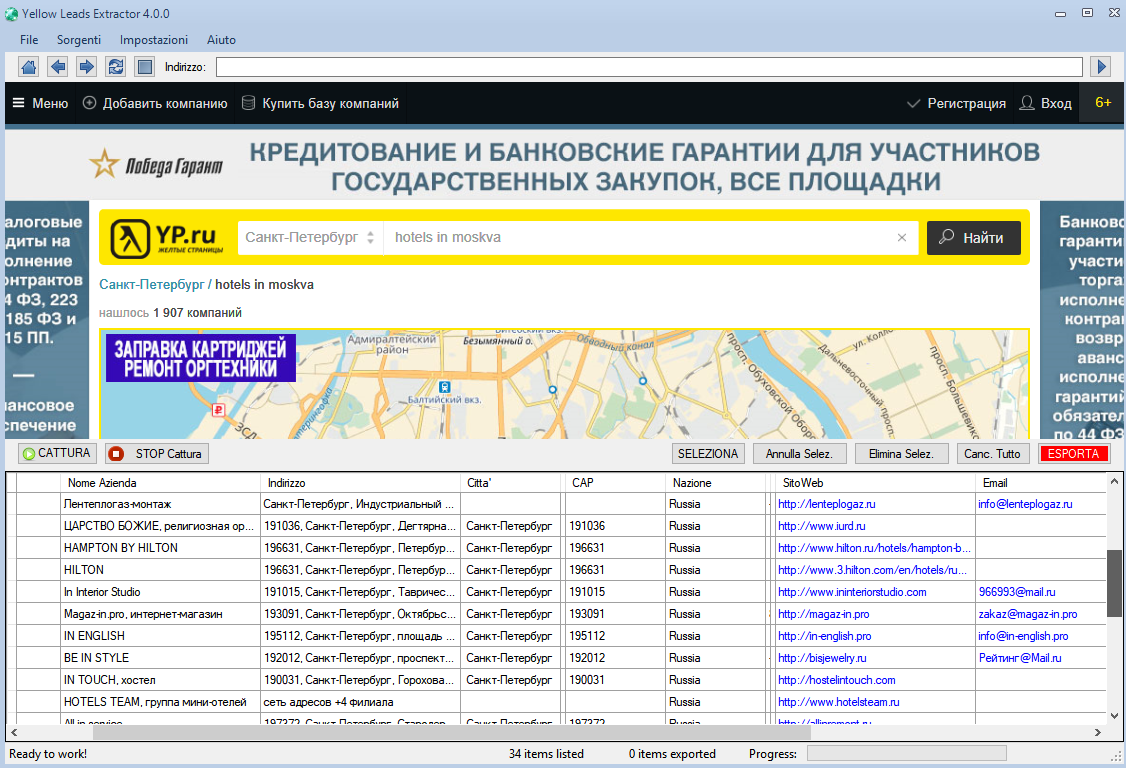
Step 4: Now click on GET DATA button to see the exported results below the software.

Step 5: At the end of the capture, click on SELECT ALL button to select all results

Step 6: Click on EXPORT button (red button on the right). The data can be saved in a CSV file format or to Excel. Go to Settings menu to choose your preferred output file format.

NB: If you are using the FREE TRIAL VERSION of the software, after 35 data captured it will appear a notice that let you know you should purchase the FULL version to capture and export more data:

You can purchase the full version from the menu Help –> Buy Full Version

DOWNLOAD YELLOW LEADS EXTRACTOR (trial version for Windows)
If you want the license for the FULL VERSION please CLICK HERE

Copyright © 2026 Estrattoredati.Com | Terms & Conditions | Refund Policy