G-Business Extractor | Extract B2B leads from Google and Bing Maps

Capture B2B Leads from Google & Bing Maps with G-Business Extractor

5554591G-Business Extractor is a powerful tool that help you to find business leads from Google Maps and Bing Maps. It is the best B2B Leads Extractor tool able to capture data from the most important business directory. All data is extracted in real time, thus ensuring superior quality of information, up-to-date and truthful data.

Google Maps and Bing Maps are the sources where you can find millions of business leads classifieds by categories and locations.
You can search by your target keywords in your locations. This software will search and find business information like website, email addresses, phone, average ratings, etc..

The excellent G-Business Extractor has been created to beat any competitor with its powerful features:

Extract Data (e-mail addresses, phone, ratings, business name, etc) from Google & Bing Maps directory in seconds with just one click.
> User can search in any category and location
> No need of Proxy or VPN
> Automatic updates when sources sites change.
> Export results to CSV or XLSX
> Supported OS: Windows 11/10/8 64-bit only (with at least 8GB ram) and macOS (12.3 or higher)

 Download DEMO for Windows         Buy Now for Windows 

 Download  DEMO  for  MacOS         Buy  Now  for  Mac OS 

Below is the guide for Windows users. If you have a Mac, read how to use G-business Extractor on Mac

EXTRACT DATA FROM GOOGLE MAPS WITH G-BUSINESS EXTRACTOR

STEP 1. Download and Install G-Business Extractor on your PC. (It supports all Windows OS 64-bit). If you have a Mac please download it from this page.

This is the program’s main interface:

STEP 2. Select data source, category and location that you desire to scan.

First of all select Data Source at the top right: you can choose between Google Maps (the default option) and Bing Maps (which has the advantage of faster data capture)

Then click ADD button to add the category and the desided Location, from the top-left of the main interface.

About “location” windows, you will be able to select the Country, State, City and ZIP CODE:


Before starting the scan, click SETTINGS –> Data and set the data to export. If you desire to extract more email address please select the box “Extract emails from websites” as shown in figure below:

Other available options are:

AUTO EXPORT (only active in the PRO version): Allows you to access a file that automatically captures all results to avoid losing data after an extraction.

AUTO RESTART: This option automatically restarts the program in the event of a sudden shutdown or crash, allowing you to resume extraction from the point where you left off.

THREADS: This is the number of parallel processes the program uses to extract data. For fast PCs, you can set a value of 3 or higher; otherwise, it should be reduced to 2.

Click OK to return to the mail interface.

STEP 3. Click on “GET DATA” button 1460707344-6414-estrarre-indirizzi3 to start capturing data


As you can see from the figure above, the data that the program can extract from google maps are the following:

  1. Category
  2. Business Name
  3. Full Address
  4. City
  5. State
  6. Postal Code
  7. Coutry
  8. Phone Number
  9. Email Address
  10. Website URL
  11. Latidute/Longitude
  12. Average Ratings

STEP 4. Click on “Select All” button and then on “Export Data” to extract all info in CSVV or EXCEL files. That’s all!!

Note 1 : If you have the trial version you will be not able to export data. You need to purchase the full version. Click on “Buy Full Version” button to request the license code (valid for 1 Year)

 Download DEMO for Windows         Buy Now for Windows 

 Download  DEMO  for  Mac OS         Buy  Now  for  Mac  OS 

Below is the guide for Windows users. If you have a Mac, read how to use G-business Extractor on Mac


QUICK VIDEO TUTORIAL

Google Maps Scraper –  Video Tutorial


ADDITIONAL NOTES:

If you see a lot of duplicates during the capture it means that the tool does not find other results and you can STOP and EXTRACT data.
If you search for niche categories in a certain city we suggest you to follow these steps to avoid duplicates and to complete the task in few minutes.

STEP 1. Open the software and go in SETTINGS and set 5-10 results per zip code as shown below

STEP 2. Set the keyword and location. About the location you just need to select the city and select all zip codes.

aa

STEP 3. Click GET DATA to start capture data

aa

STEP 4. Export data and you will have no duplicates

Automatic Export and VPN

The program automatically saves data during capture. This automatic save allows you not to lose data if by chance the program should suddenly close. To access the automatically saved data, go to SETTINGS and click on the APPDATA FOLDER button. This will open a folder where you will find the export.txt file (with the automatically saved data for all the searches you have done).

This automatic export was introduced because after a few hours of work, Google could block the app. To reduce the risk of blocking, we recommend using VPN software that can dynamically change IPs every 10-20 minutes (for more info read this article)


Wyodrębnij adresy e-mail i dane polskich firm z YellowPages.pl za pomocą Y-Leads Extractor

W dzisiejszym cyfrowym świecie firmy potrzebują wysokiej jakości leadów, aby pozostać konkurencyjnymi. Yellow Leads Extractor to skuteczne oprogramowanie do pozyskiwania kluczowych informacji o firmach z katalogów Yellow Pages. Narzędzie to pozwala na ekstrakcję nazw firm, adresów, numerów telefonów, adresów e-mail i stron internetowych, co czyni je niezastąpionym w marketingu B2B oraz dla zespołów sprzedażowych.

Jeśli chcesz wyodrębnić dane polskich firm z Map Google, wypróbuj G-Business Extractor


Czym jest Yellow Leads Extractor?

Yellow Leads Extractor to oprogramowanie na system Windows, które umożliwia zbieranie danych z różnych katalogów Yellow Pages, w tym:

  • YellowPages.pl (Polska)
  • YellowPages.com (USA)
  • Yell.com (Wielka Brytania)
  • YellowPages.ca (Kanada)
  • Katalogi z innych krajów

Dzięki temu, że dane są pobierane w czasie rzeczywistym, użytkownicy otrzymują aktualne i wiarygodne kontakty, w przeciwieństwie do gotowych baz danych, które często zawierają przestarzałe informacje


Jak korzystać z Yellow Leads Extractor?

Korzystanie z programu jest bardzo proste i składa się z kilku kroków:

Pobierz i zainstaluj

Zainstaluj oprogramowanie na komputerze z systemem Windows.

Download Trial 

Główny ekran oprogramowania:

Wybierz źródło danych

Wskaż katalog Yellow Pages dla wybranego kraju. Wybierz YellowPages.pl, jeśli chcesz wyodrębnić dane z katalogu polskich firm

Wprowadź kryteria wyszukiwania

Określ rodzaj działalności i lokalizację (np. “kancelarie prawne w Krakowie”).

Rozpocznij ekstrakcję

Kliknij przycisk “GET DATA“, aby pobrać szczegóły firm.

Eksportuj dane

 Zapisz wyniki w formacie Excel lub CSV / EXCEL


Najważniejsze funkcje i korzyści

1. Ekstrakcja danych w czasie rzeczywistym

Yellow Leads Extractor przeszukuje internet na bieżąco, minimalizując ryzyko uzyskania błędnych lub nieaktualnych danych. Możesz precyzyjnie określić branżę i lokalizację, co czyni go elastycznym narzędziem dla różnych firm.

2. Obsługa wielu krajów i kategorii biznesowych

Użytkownik może wyszukiwać firmy według branży i lokalizacji. Na przykład, jeśli chcesz znaleźć restauracje w Warszawie, wystarczy wpisać odpowiednie słowa kluczowe, a program pobierze dane z wybranego katalogu Yellow Pages

3. Eksport danych do plików Excel lub CSV

Po ekstrakcji danych użytkownicy mogą zapisz je w formacie CSV lub Excel, co ułatwia ich dalsze przetwarzanie w systemach CRM lub w kampaniach marketingowych.

4. Pobieranie e-maili i numerów telefonów

Oprogramowanie umożliwia ekstrakcję adresów e-mail i numerów telefonów, co jest kluczowe dla e-mail marketingu i sprzedaży bezpośredniej. Pozyskane kontakty mogą znacznie zwiększyć skuteczność kampanii marketingowych

5. Wersja demo i pełna wersja

Dostępna jest wersja demo, która umożliwia pobranie ograniczonej liczby wyników. Pełna wersja pozwala na nieograniczoną ekstrakcję kontaktów, co jest niezwykle przydatne dla firm szukających dużych baz danych

Zastosowania Yellow Leads Extractor

✔ Marketing B2B – Pozyskane listy e-mail można wykorzystać do kampanii e-mail marketingowych i budowania relacji biznesowych

✔ Pozyskiwanie klientów (lead generation) – Zespoły sprzedażowe mogą używać numerów telefonów i e-maili do kontaktowania się z potencjalnymi klientami.

✔ Badania rynkowe – Firmy mogą analizować konkurencję oraz oceniać potencjał rynku na podstawie uzyskanych danych.

✔ Agencje marketingowe i sprzedażowe – Agencje mogą budować precyzyjnie ukierunkowane listy kontaktów dla swoich klientów.


Dlaczego warto wybrać Yellow Leads Extractor?

  • Tańsza alternatywa dla gotowych baz danych – Zamiast kupować drogie, często nieaktualne listy kontaktów, możesz samodzielnie pozyskać świeże dane.
  • Możliwość dokładnego filtrowania – Dzięki wyszukiwaniu po branży, lokalizacji i rozmiarze firmy, możesz uzyskać bardziej trafne leady.
  • Łatwa integracja z narzędziami marketingowymi – Dane można łatwo eksportować i wykorzystywać w kampaniach e-mailowych i CRM.

New PagesJaunes Scraper [Y-Leads Extractor]

New PagesJaunes Scraper [Y-Leads Extractor]

Pour extraire les données des pages jaunes françaises à partir d’aujourd’hui vous avez besoin des nôtres NEW PagesJaunes Scraper. C’est un nouveau programme (inclus dans le package Y-Leads Extractor) conçu pour capturer les données de PagesJaunes et contourner le cryptage présent sur le nouveau site. Avec ce programme il est possible d’extrapoler les données des entreprises et des professionnels du site pagesjaunes.fr puis de tout sauvegarder dans un fichier CSV.

Vous pouvez télécharger ce nouveau programme à partir du lien suivant :

Extrayez le contenu du zip dans un dossier sur votre ordinateur. Ouvrez ensuite ce dossier et double-cliquez sur le fichier PagesJaunesScraper.exe pour démarrer le programme.

Après l’installation, l’écran principal suivant s’ouvrira :

A ce stade, les étapes à suivre pour extraire les données de pagesjaunes.fr sont très simples.

ÉTAPE 1. Effectuez la recherche souhaitée
Écrivez la catégorie et l’emplacement souhaité et appuyez sur le bouton de recherche. Attendez que la première page apparaisse avec les 20 premiers résultats

ÉTAPE 2. Cliquez sur GET DATA
Après avoir appuyé sur le bouton GET DATA, le programme commencera à collecter tous les liens des résultats.

ÉTAPE 3. Cliquez sur EXPORT
Une fois que le programme a collecté tous les liens des résultats, cliquez sur EXPORT. Une fenêtre s’ouvrira vous demandant de choisir où enregistrer le fichier CSV avec toutes les données collectées.

Faites ce choix et appuyez sur OK. Le programme commencera à extraire les données de chaque page d’entreprise.

ÉTAPE 4. Afficher Excel avec les résultats
Attendez la fin de l’extraction des données (n’ouvrez pas le fichier excel pendant la capture des données). A la fin vous pouvez ouvrir le fichier excel et voir tous les résultats extraits (nom de l’entreprise, catégorie, adresse, numéro de téléphone, site internet, adresse email, etc…).

Remarque : La version de démonstration gratuite vous permet de voir les 35 premiers résultats, mais l’exportation est désactivée. Pour n’avoir aucune limitation, vous devez acheter la licence du programme à partir du lien ci-dessous

Extraer direcciones de Email y Teléfonos de Google y Bing

Si desea extraer direcciones de Email y números de Teléfono de Google y Bing, o más bien de los resultados de búsqueda presentados por estos motores de búsqueda, ahora puede confiar en nuestro software GoogleBing Email Extractor. Es probablemente el EXTRACTOR DE DATOS WEB más potente e innovador porque se basa directamente en los motores de búsqueda para capturar primero las direcciones (URL) de los sitios que figuran en los resultados y luego buscar en cada uno de ellos cualquier dirección de correo electrónico y número de teléfono. . Además de esto, puede capturar más detalles de los resultados, como el título y la descripción del sitio.

Estos son los pasos simples a seguir para usar GoogleBing Email Extractor y extraer todos los correos electrónicos y números de teléfono posibles para ciertas palabras clave. Con este programa puede capturar resultados prácticamente de TODO el mundo y no solo de los resultados del motor de búsqueda italiano.

Cómo extraer direcciones de correo electrónico de Google y Bing

Paso 1. Descargue e instale el programa

Haga clic en el botón “Descargar versión de prueba” a continuación para descargar la versión demo gratuita de GoogleBing Email Extractor:

Descargar Versión de Prueba          Comprar licencia

Con la versión de demostración, puede comprender cómo funciona el programa y ver los primeros 35 datos capturados por el programa para cada búsqueda realizada. La exportación en la versión demo está deshabilitada y se activa solo con la compra de la licencia (la exportación puede realizarse en formato Excel, CSV o TXT)

Después de la instalación, haga doble clic en el icono del programa:

Al abrir el programa, verá esta pantalla principal:

Paso 2. Selecciona la fuente

Al hacer clic en la fuente de GOOGLE, se abrirá el sitio web de Google en el programa. Puede aparecer primero una pantalla invitándolo a aceptar los términos de uso … aceptar todo y al final se abrirá la siguiente página de inicio:

Si hace clic en la fuente BING, se abrirá esta pantalla principal:

Paso 3. Realice la búsqueda deseada

Ahora, independientemente de si ha elegido la fuente BING o GOOGLE, ingrese las palabras clave para obtener las direcciones de correo electrónico relacionadas. Después de escribir las palabras clave, haga clic en Entrar y espere a que aparezca la primera página de resultados de Google o Bing:

Paso 4. Captura de datos y correo electrónico

Después de obtener la búsqueda deseada y preparar la primera página con los resultados, haga clic en el botón GET DATA y el programa logró AUTOMÁTICAMENTE extrapolar todos los datos de resultados: título del sitio, descripción, dirección de correo electrónico, URL del sitio web y problema. teléfono.

Paso 5. Exportar datos

Una vez que haya capturado todos los datos de interés, haga clic en el botón SELECCIONAR para seleccionar todos los resultados y finalmente en EXPORTAR para exportar todo en un archivo EXCEL o CSV o TXT.

Al elegir Excel, obtendrá un archivo con las 4 columnas que se muestran en la siguiente figura (en la tercera columna encontrará las direcciones de correo electrónico extrapoladas de los sitios web). En la última columna, por otro lado, encontrará el número de teléfono que se encuentra en el sitio.

Eso es todo!
Descargue la versión de prueba del programa o compre la licencia de la versión completa en los siguientes enlaces

Descargar Versión de Prueba          Comprar licencia


Extrahieren E-Mail-Adressen aus Google und Bing

Wenn Sie E-Mail-Adressen und Telefonnummern von Google und Bing oder vielmehr von den Suchergebnissen dieser Suchmaschinen extrahieren möchten, können Sie sich jetzt auf unsere GoogleBing Email Extractor verlassen. Es ist wahrscheinlich der leistungsstärkste und innovativste WEB DATA EXTRACTOR, da er sich direkt auf die Suchmaschinen stützt, um zuerst die Adressen (URLs) der in den Ergebnissen aufgeführten Websites zu erfassen und dann in jeder nach einer E-Mail-Adresse und Telefonnummer zu suchen. . Darüber hinaus ist es möglich, weitere Details der Ergebnisse wie den Site-Titel und die Beschreibung zu erfassen.

Befolgen Sie die folgenden einfachen Schritte, um GoogleBing Email Extractor zu verwenden und alle möglichen E-Mails und Telefonnummern für bestimmte Keywords zu extrahieren. Mit diesem Programm können Sie praktisch Ergebnisse aus der ganzen Welt erfassen und nicht nur aus den Ergebnissen der italienischen Suchmaschine.

Extrahieren E-Mail-Adressen aus Google und Bing

Step 1. Laden Sie das Programm herunter und installieren Sie es

Klicken Sie unten auf die Schaltfläche “Download”, um die kostenlose Demoversion von herunterzuladen GoogleBing Email Extractor:

Download          Kaufen

Mit der Demoversion können Sie die Funktionsweise des Programms verstehen und die ersten 35 vom Programm erfassten Daten für jede durchgeführte Suche anzeigen. Der Export in die Demoversion ist deaktiviert und wird erst mit dem Erwerb der Lizenz aktiviert (der Export kann im Excel-, CSV- oder TXT-Format erfolgen)

Wenn Sie das Programm öffnen, sehen Sie diesen Hauptbildschirm:

Step 2. Wählen Sie die Quelle

Durch Klicken auf die GOOGLE-Quelle wird die Google-Website im Programm geöffnet. Möglicherweise erscheint zuerst ein Bildschirm, in dem Sie aufgefordert werden, die Nutzungsbedingungen zu akzeptieren. Akzeptieren Sie alles. Am Ende wird die folgende Homepage geöffnet:

Wenn Sie stattdessen die BING-Quelle auswählen, wird der folgende Hauptbildschirm geöffnet:

Step 3. Führen Sie die gewünschte Suche durch

Geben Sie nun unabhängig davon, ob Sie die Quelle BING oder GOOGLE ausgewählt haben, die Schlüsselwörter ein, von denen Sie die entsprechenden E-Mail-Adressen erhalten möchten. Klicken Sie nach dem Schreiben der Keywords auf Eingabe und warten Sie, bis die erste Seite der Google- oder Bing-Ergebnisse angezeigt wird:

Step 4. Erfassen Sie Daten und E-Mails

Nachdem Sie die gewünschte Suche durchgeführt haben und die erste Seite mit den Ergebnissen angezeigt wird, klicken Sie auf die Schaltfläche GET DATA und das Programm beginnt automatisch, alle Daten aus den Ergebnissen zu extrapolieren: Site-Titel, Beschreibung, E-Mail-Adresse, Website-URL und Nummer telefonisch.

Dasselbe wie die Bing-Quelle auswählen und darin suchen:

Step 5. Daten exportieren

Nachdem Sie alle relevanten Daten erfasst haben, klicken Sie auf die Schaltfläche AUSWÄHLEN, um alle Ergebnisse auszuwählen, und anschließend auf EXPORTIEREN, um alle Daten in eine EXCEL-, CSV- oder TXT-Datei zu exportieren.

Wenn Sie Excel wählen, erhalten Sie eine Datei mit den in der folgenden Abbildung gezeigten 4 Spalten (in der dritten Spalte finden Sie die von den Websites extrapolierten E-Mail-Adressen). In der letzten Spalte finden Sie die auf der Site gefundene Telefonnummer

Standardmäßig ist das CSV-Format eingestellt, Sie können jedoch das Exportformat ändern und in den Programmeinstellungen Excel oder TXT auswählen (indem Sie oben auf Einstellungen klicken):


So aktivieren Sie GoogleBing E-Mail Extractor

Bei Verwendung der Testversion des Programms wird nach 35 erfassten Ergebnissen ein Fenster angezeigt, in dem Sie aufgefordert werden, das Programm durch den Kauf der Lizenz zu “entsperren”. Sie können die Programmlizenz über die folgende Schaltfläche erwerben:

    Kaufen

Die Lizenz ist 1 Jahr lang gültig und ermöglicht es Ihnen, UNBEGRENZTE Ergebnisse zu erfassen. Beim Kauf der Lizenz erhalten Sie umgehend per E-Mail den “Registrierungscode”, den Sie im Programm eingeben müssen, um die Einschränkungen zu beseitigen. Um das Programm zu registrieren, klicken Sie auf das Hauptmenü HILFE -> REGISTRIERUNG 

Im folgenden Fenster müssen Sie die E-Mail-Adresse und den Registrierungscode eingeben, die Sie per E-Mail erhalten haben, und auf REGISTRIEREN klicken, um die Software zu aktivieren.

Extrair Emails e Telefones de Empresas Brasileiras

Yellow Leads Extractor é um poderoso software de aranha e raspador capaz de escanear os populares diretórios de “páginas amarelas” e extrair deles todas as informações comerciais como nome comercial, endereço, número de telefone, número de fax, URL do site e endereços de e-mail.

Com este software de raspagem de páginas amarelas, você pode criar suas próprias listas de discussão em poucos minutos e em “tempo real”. É muito simples e rápido de usar: em primeiro lugar só precisa selecionar a fonte (site de páginas amarelas) e digite a categoria de negócios e localização, em seguida, iniciar a pesquisa e, finalmente, capturar todos os dados para extrair todos os resultados. Todas as informações e dados serão salvos no seu PC em um arquivo Excel ou CSV.

Quanto aos dados das empresas brasileiras, a Yellow Leads Extractor é capaz de analisar e extrair Emails e Telefones de empresas a partir do popular site Guiamais.com.br e YELP Brasil (https://yelp.com.br)

Como Y-Leads Extractor funciona para extrair Emails, Telefones e Endereços de Empresas Brasileiras

STEP 1. Instale o programa no seu computador

Download

STEP 2. Na tela inicial do programa, selecione a fonte Guiamais.com (Brasil) o YELP Brasil

STEP 3. Digite a categoria e o local e inicie a pesquisa

STEP 4. Clique em GET DATA para começar a extrair nomes de empresas brasileiras, endereço, telefone, emails, website e assim por diante.

STEP 5. Exportar dados para o seu PC no formato CSV ou Excel

Tudo aqui!

Aqui estão alguns soucers do diretório de páginas amarelas, pronto para digitalizar!

https://www.guiamais.com.br/ em Brasil
https://www.yelp.com.br em Brasil: Extrair Dados Yelp Brasil
http://www.yellowpages.com em Estados Unidos
http://www.yellowpages.ca no Canadá
http://www.paginegialle.it na Itália
http://www.gelbeseiten.de na Alemanha
http://www.paginasamarillas.es em Espanha
http://www.pagesjaunes.fr em Francês
http://www.local.ch na Suíça
http://www.yell.com na Inglaterra
http://www.herold.at na Áustria
http://www.goldenpages.be na Bélgica
http://www.yellowpages.pl na Polónia
http://www.detelefoongids.nl na Holanda
http://www.yellowpageslalbania.com em Albânia
http://www.paginiaurii.ro/ na Roménia
etc ….

A versão gratuita do Yellow Leads Extractor permite que você veja como funciona. O recurso de exportação está desativado, mas você pode ativá-lo comprando a versão completa (código de licença). Oferecemos suporte on-line 24 horas por dia, 7 dias por semana e upgrades gratuitos para toda a vida! Experimente agora de graça! Faça o download do Yellow Leads Extractor no seu PC (o en funciona no Windows 11/10, Windows 8, Windows 7, Windows Vista e XP)

QUICK VIDEO TUTORIAL

GUIAMAIS.COM.BR DATA EXTRACTOR with Yellow Leads Extractor

Extraire les adresses e-mail des Moteurs de Recherche GOOGLE et BING

Lorsque nous parlons de moteurs de recherche, nous nous référons essentiellement à deux “géants” du secteur, à savoir GOOGLE et BING. Tous les sites Web du monde sont présents dans ces deux moteurs de recherche et représentent donc la source principale pour ceux qui cherchent à capturer des données du Web, en particulier les adresses EMAIL.

Si vous souhaitez extraire les adresses E-MAIL et les numéros de téléphone de Google et Bing, ou plutôt des résultats de recherche présentés par ces moteurs de recherche, vous pouvez désormais vous fier à notre logiciel GOOGLEBING EMAIL EXTRACTOR. C’est probablement l’extracteur de données Web le plus puissant et le plus innovant car il s’appuie directement sur les moteurs de recherche pour capturer d’abord les adresses (URL) des sites répertoriés dans les résultats, puis aller chercher dans chacun d’eux une adresse e-mail et un numéro de téléphone. 

Voici les étapes simples à suivre pour utiliser GoogleBing Email Extractor et extraire tous les e-mails et numéros de téléphone possibles pour certains mots clés. Avec ce programme, vous pouvez capturer des résultats pratiquement de partout dans le monde et pas seulement à partir des résultats du moteur de recherche français.

Extraire les adresses e-mail des Google e Bing

étape 1. Téléchargez et installez le logiciel

Cliquez sur le bouton “Télécharger” ci-dessous pour télécharger la version de démonstration gratuite de GoogleBing Email Extractor:

Telecharger       Acheter

En ouvrant le programme, vous verrez cet écran principal:

Vous pouvez choisir entre les deux moteurs de recherche: BING et GOOGLE. Ils sont tous deux excellents pour effectuer des recherches sur Internet, puis pour capturer des adresses e-mail à partir de divers sites Web. L’avantage d’utiliser BING est qu’il affiche des résultats ILLIMITÉS qui sont pertinents pour la recherche, Google peut plutôt afficher une quantité limitée de données pour chaque recherche.

étape 2. Sélectionnez la source

Cliquer sur la source GOOGLE ouvrira le site Web de Google dans le programme. Un écran peut apparaître en premier vous invitant à accepter les conditions d’utilisation… acceptez tout et à la fin la page d’accueil suivante s’ouvrira:

Si vous cliquez sur la source BING, cet écran principal s’ouvrira:

étape 3. Effectuez la recherche souhaitée

Maintenant, que vous ayez choisi la source BING ou GOOGLE, saisissez les mots clés à partir desquels obtenir les adresses e-mail associées. Après avoir écrit les mots clés, cliquez sur Entrée et attendez que la première page des résultats Google ou Bing apparaisse:

Si vous souhaitez trouver des résultats non pas en France mais dans tout autre pays du monde, modifiez simplement les paramètres du moteur de recherche avant de lancer la recherche. En pratique, voici ce que vous devez faire pour définir le pays de recherche (sur un pays autre que la France):

GOOGLE: Ndans le cas de Google, vous devez d’abord cliquer sur Paramètres en bas à droite de l’accueil du moteur de recherche:

Ensuite, vous devrez rechercher et modifier les “paramètres de zone géographique” en sélectionnant le pays dont vous voulez les résultats (et les extrapoler avec le programme).

BING: Dans le cas de Bing, une fois que vous avez ouvert sa page d’accueil dans le programme, cliquez en haut à droite sur les trois lignes horizontales pour accéder aux paramètres, puis cliquez sur “Pays / zone géographique”

Dans la fenêtre qui s’ouvre, vous pouvez définir n’importe quel pays à partir duquel obtenir les résultats à extrapoler avec le programme


étape 4. Capturez des données et des e-mails

Après avoir effectué la recherche souhaitée et la première page avec les résultats apparaît, cliquez sur le bouton CAPTURE (GET DATA) et le programme commencera à extrapoler AUTOMATIQUEMENT toutes les données des résultats: titre du site, description, adresse e-mail, URL du site Web et numéro par téléphone.

Même chose que de choisir la source Bing et d’y faire une recherche:

L’adresse e-mail sera recherchée directement sur le site Internet du résultat, elle sera donc 100% cohérente avec la recherche que vous avez effectuée!

étape 5. Exporter des données

Une fois que vous avez capturé toutes les données d’intérêt, cliquez sur le bouton SELECT pour sélectionner tous les résultats et enfin sur EXPORT pour tout exporter dans un fichier EXCEL ou CSV ou TXT.


Comment activer GoogleBing Email Extractor

En utilisant la version d’essai du programme, après 35 résultats capturés, une fenêtre apparaîtra vous demandant de “déverrouiller” le programme en achetant la licence. Vous pouvez acheter la licence du programme à partir du bouton suivant:

Acheter

La licence est VALABLE pendant 1 AN et vous permet de capturer des résultats ILLIMITÉS. Avec l’achat de la licence, vous recevrez immédiatement par email le code “inscription” que vous devrez saisir dans le programme pour supprimer les limitations. Pour enregistrer le programme, cliquez sur le menu supérieur AIDE -> REGISTER

TUTORIEL VIDEO

GOOGLE SEARCH EMAIL EXTRACTOR:


[Just Dial Extractor] How to Extract Data (Phones & Emails) from JustDial.com

Justdial.com is the leading directory of companies in India. It is a site well structured that facilitate the search for companies and professionals located in India. If you are looking for a way to extract data from JUST DIAL, in this page you will find the best software solution. With this software you will be able to scan and retrieve informations from JustDial.com?

The software able to scan Just Dial website and also a lot of other “yellow pages” directories is Yellow Leads Extractor. It is a powerful Yellow Pages Scraper and YELP scraper that capture all companies data from public directories. Now it supports also JUSTDIAL.

Thanks to Y-Leads Extractor you can extract data from Just Dial like businesses name, address, phone number as well as emails. Check this Youtube Video Tutorial to see how it works!

Download now the free trial version:

Download

Yellow Leads Extractor is very simple to use. And all captured data from JustDial.com will be ready to be saved into a CSV or Excel file. Please read below to learn how to use Yellow leads extractor and get email from JustDial in 5 minutes!

NOTE: Please note that on JustDial.com all phone numbers and email addresses are well encrypted. But Y-Leads Extractor is able to capture phone numbers and decrypt them. Also email addresses can be captured from the website URL (if website url is listed in Justdial.com).

How to use Y-Leads Extractor to scrape JUST DIAL website

Step 1: Download, install and launch the software. This is the main screen of the program:

Click on JUSTDIAL.COM link to open the Just Dial website in the browser of the program. You will see this:

Step 2: Make the desired search typing the keyword and location

Step 3: Wait that the first page of results is loaded

Step 4: Now click on GET DATA button to see the captured results below the software (see image below)

Step 5: At the end of the capture, click on SELECT ALL button to select all results

Step 6: Click on EXPORT button (red button on the right). The data can be saved in a CSV file format or to Excel. Go to Settings menu to choose your preferred output file format.

NB: If you are using the FREE TRIAL VERSION of the software, after 35 data captured it will appear a notice that let you know you should purchase the FULL version to capture and export more data:

You can purchase the full version from the menu Help –> Buy Full Version

DOWNLOAD YELLOW LEADS EXTRACTOR (trial version for Windows)
If you want the FULL license (without limitations and valid for 1 Year) please CLICK HERE


VIDEO TUTORIAL

How to Extract Email from Russian YP.ru

Yp.ru is the leading directory of companies in Russia. It is a site all in Russian and is structured to facilitate the search for companies and professionals located in Russia. If you are looking for a way to find some Russian companies email addresses, this directory is the best source to exploit. But how to extract emails from Yp.ru? Is there a program that can scan and retrieve information from Yp.ru?

The best software able to scan a lot of “yellow pages” directory is Yellow Leads Extractor, a powerful Yellow Pages Scraper for RUSSIA, USA, Canada, French, German, Italy, Spain, Switzerland, click here for the full list.

Basically it is a tool that scan YP.ru results and retrieve informations like businesses name, address, phone numbers as well as emails. Download now the free trial version:

Download

Yellow Leads Extractor is very simple to use. And all captured data from YP.ru will be ready to be saved into a CSV or Excel file. Please read below to learn how to use Yellow leads extractor and get emails from Yp.ru in 5 minutes!

How to use Yellow Leads Extractor to scrape YP.ru website

Step 1: Download, install and launch the software. This is the main screen of the program:

Click on YP.ru link (  ) to open the YP.ru website in the browser of the program. You will see this:

Step 2: Make the desired search typing the keyword and location (you have to write in russian or english)

Step 3: Wait that the first page of results is loaded

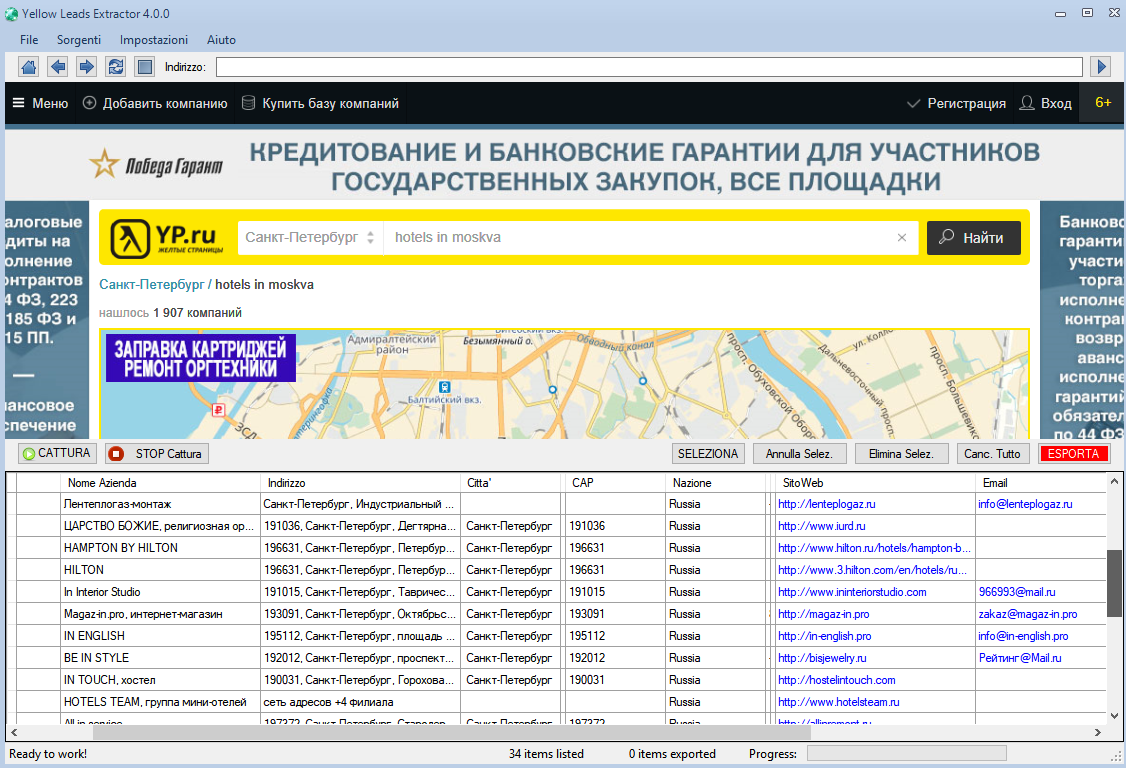
Step 4: Now click on GET DATA button to see the exported results below the software.

Step 5: At the end of the capture, click on SELECT ALL button to select all results

Step 6: Click on EXPORT button (red button on the right). The data can be saved in a CSV file format or to Excel. Go to Settings menu to choose your preferred output file format.

NB: If you are using the FREE TRIAL VERSION of the software, after 35 data captured it will appear a notice that let you know you should purchase the FULL version to capture and export more data:

You can purchase the full version from the menu Help –> Buy Full Version

DOWNLOAD YELLOW LEADS EXTRACTOR (trial version for Windows)
If you want the license for the FULL VERSION please CLICK HERE

Copyright © 2026 Estrattoredati.Com | Terms & Conditions | Refund Policy