Finding business email addresses is essential for anyone involved in B2B marketing, lead generation, or selling services. In this guide, you’ll discover the most effective methods to collect company contacts quickly and at scale.
If you need to contact companies, offer services, or run email campaigns, the first step is building a list of valid email addresses. Doing it manually is slow and inefficient, but there are tools that can automate the entire process.
Methods to Find Business Emails
There are three main approaches:
Manual research on company websites
Using Google and search engines
Automated extraction using software
Let’s explore them in detail.
Method 1: Manual Research (Slow but Free)
You can manually visit company websites and look for the “Contact” page. This method works, but it has several limitations:
It takes a lot of time
It’s not scalable
Results are often incomplete
It’s fine for collecting a few emails, but not recommended for professional use.
Method 2: Using Google and Bing
You can use advanced search queries on Google and Bing to find publicly available email addresses on company websites.
For example:
“email” + industry + city
“contact” + company name
This method is slightly faster, but still limited.
It depends on the method used: with automated tools, you can collect hundreds or thousands of contacts in a short time.
Are the emails reliable?
Extracted emails come from public sources, but it’s always recommended to verify them before use.
What is the fastest method?
Using automated software is the fastest and most efficient approach.
Conclusion
If you want to find business emails professionally, the best approach is to use automated tools that save time and deliver scalable results.
👉 Final recommendation:
Google Maps → G-Business Extractor
Search engines → Total Email Phone Extractor
Directories → Yellow Leads Extractor
Advanced Strategies to Find More Emails
To get better results, you can combine multiple methods:
Use Google Maps to find local businesses
Extract emails from company websites
Use online directories
Filter results by industry and location
By combining these strategies, you can build highly targeted business contact databases.
Frequently Asked Questions
Is it legal to collect business emails?
Publicly available business emails can be collected, but you must comply with regulations such as GDPR.
Can I export data to Excel?
Yes, all tools allow exporting data in CSV or Excel format.
Does it work worldwide?
Yes, you can find companies and contacts in any country.
Why Finding Business Emails Is Important
Business emails are one of the most effective ways to directly reach potential clients. Unlike social media, email marketing allows direct, personalized communication with high conversion rates.
Trovare email aziendali è fondamentale per chi fa marketing B2B, lead generation o vendita di servizi. In questa guida scoprirai i metodi più efficaci per ottenere contatti aziendali in modo rapido e scalabile.
Se hai bisogno di contattare aziende, proporre servizi o creare campagne email, il primo passo è ottenere una lista di email valide. Farlo manualmente è lento e inefficiente, ma esistono strumenti che permettono di automatizzare tutto il processo.
I metodi per trovare email di aziende
Esistono tre principali approcci:
Ricerca manuale sui siti web
Utilizzo di Google e motori di ricerca
Estrazione automatica tramite software
Vediamoli nel dettaglio.
Metodo 1: Ricerca manuale (lenta ma gratuita)
Puoi visitare manualmente i siti web delle aziende e cercare la pagina “Contatti”. Questo metodo funziona ma presenta diversi limiti:
Richiede moltissimo tempo
Non è scalabile
Non garantisce risultati completi
Se devi raccogliere poche email può andare bene, ma per attività professionali è sconsigliato.
Metodo 2: Usare Google e Bing
Puoi utilizzare ricerche avanzate su Google e Bing per trovare email pubbliche nei siti web aziendali.
Ad esempio:
“email” + settore + città
“contatti” + nome azienda
Questo metodo migliora leggermente la velocità, ma resta comunque limitato.
Dipende dal metodo utilizzato: con strumenti automatici puoi raccogliere centinaia o migliaia di contatti in poco tempo.
Le email trovate sono affidabili?
Le email estratte provengono da fonti pubbliche, ma è sempre consigliato verificarle prima dell’utilizzo.
Qual è il metodo più veloce?
L’utilizzo di software automatici è il metodo più rapido ed efficiente.
Conclusione
Se vuoi trovare email di aziende in modo professionale, il metodo migliore è utilizzare strumenti automatici che ti permettono di risparmiare tempo e ottenere risultati scalabili.
👉 Consiglio finale:
Google Maps → G-Business Extractor
Motori di ricerca → Total Email Phone Extractor
Directory → Yellow Leads Extractor
Strategie avanzate per trovare più email
Per ottenere risultati migliori, puoi combinare più metodi:
Usare Google Maps per trovare aziende locali
Estrarre email dai siti web aziendali
Utilizzare directory online
Filtrare i risultati per settore e città
Combinando queste strategie puoi creare database di contatti altamente qualificati.
Domande frequenti
È legale raccogliere email aziendali?
Le email pubbliche presenti sui siti aziendali possono essere raccolte, ma è importante utilizzarle nel rispetto delle normative vigenti (GDPR).
Posso esportare i dati in Excel?
Sì, tutti i software permettono di esportare i dati in formato CSV o Excel.
Funziona per qualsiasi paese?
Sì, puoi trovare aziende e contatti in qualsiasi parte del mondo.
Perché trovare email di aziende è così importante?
Le email aziendali rappresentano uno dei canali più efficaci per entrare in contatto diretto con potenziali clienti. A differenza dei social media, l’email marketing permette comunicazioni dirette, personalizzate e con un alto tasso di conversione.
When we talk about search engines we refer essentially to two “giants” of the sector, that is GOOGLE and BING. All the websites in the world are present in these two search engines and therefore they represent the primary source for those looking to capture data from the Web, in particular the EMAIL addresses and PHONE numbers.
If you want to extract email addresses and phones from Bing and Google Search, or better from the search results presented by these two search engines, you can now rely on our GoogleBing Email Extractor software. It is probably the most powerful and innovative WEB DATA EXTRACTOR because it leans directly to the search engines to capture the addresses (URLs) of the sites listed in the results first and then goes to look for any email address in each of them. This tool is also able to capture further details of the results such as the site title and description.
Here are the simple steps to follow to use the GoogleBing Email Extractor and extract all the possible emails addresses and phone numbers for certain keywords.
How to Extract Email and Phone Numbers with the NEW GOOGLE BING EMAIL EXTRACTOR (version 8)
Step 1. Download and install the program
Click below on “Download Trial” button to download the FREE trial version (for Windows PC) of GoogleBing Email Extractor (vers.8)
If you have a macOS you can try this Email Extractor extension.
With the demo version you will be able to understand how the program works and view the first 50 data captured by the program for each search performed. The export in the demo version is disabled and is activated only with the purchase of the license (the export takes place in a simple TXT file)
After installation, double click on the program icon:
Here is the main screen of the program:
Step 2. Add Category and Location to search
Click the ADD CATEGORY button to enter the category / keyword to use for the search. We recommend that you enter keywords of a maximum of two words.
Then click on ADD LOCATION and a window will open in which you can select the country, region, city and even postcode (if you want data aimed at a specific location). You can also leave a whole region if you want to extract all emails on a large scale.
Step 3. Start data extrapolation
After entering the category and location, select the relevant check-boxes and finally press the GET DATA button. At this point the program will start searching for data in Google (default search engine) and BING. For each result, the software will automatically search for the email address in the website link on the search engine. All emails found will appear in the Email Address column as shown in the following figure.
The power of GoogleBing Email Extractor is that the search will be done in all the locations (cap) displayed at the top right (tasks) of the program, in order to maximize the number of emails found. In addition to emails, the program will also search for any phone numbers (if published on the result site).
At the end of the search and data capture, just click on the Export Email (or Export Phone) button to save all the data in a txt file. Then you can copy the data into Excel and remove any duplicates or make other filters.
To maximize the amount of phone numbers extracted, go to SETTINGS and select the “Extract phone numbers from website” check-box. This setting will slow down data extraction because the software will also search for any phone numbers in addition to the email address.
In the event that the program were to close during data extraction, no problem. Always accessing SETTINGS, just click on the AUTO EXPORT FILE button to access a folder where you can find the export.txt file with all the data captured by the program.
NB: If you let the program work for several hours it is possible that Google may temporarily block the search. In this case you can continue to use the program by switching from Google to the BING search engine. Go to Settings, click on the CONNECTION tab and then select the “Switch from Google to Bing“ box. Then press OK to return to the initial screen and proceed with the data extraction.
How to Activate GoogleBing E-mail Extractor
Using the trial version of the program after 35 captured results will appear a window that will ask you to “unlock” the program by purchasing the license. You can purchase the program license from the following button:
The license is VALID for 1 YEAR and allows you to capture UNLIMITED results. With the purchase of the license you will immediately receive by email the “registration” code that you will have to insert in the program to remove the limitations. To register the program click on the top menu REGISTRATION. In the window that opens you will need to enter the email and registration code obtained by email and click on REGISTER to activate the software.
[Archive] How to use GoogleBing Extractor (version 5.6)
Guide to using the previous version of Google Bing Extractor (version 5.6):
Step 1. Download and install the program
Click below on “Download Trial” button to download the FREE trial version (for Windows PC) of GoogleBing Email Extractor:
If you have a macOS you can try this Email Extractor service.
With the demo version you can understand how the program works and view the first 35 data captured by the program for each search. The export in the demo version is disabled. It can be activated only with the purchase of the license (the export can take place in Excel, CSV or TXT format)
After installation double click on the program icon:
This is the main screen of GoogleBing Email Extractor:
As you can see from image above, you can choose between the two search engines: BING and GOOGLE search. They are both great for searching the Internet and then capturing email addresses from various websites. You can use both sources to capture as much data as possible. The advantage of using BING is that it shows UNLIMITED results; Google could show a limited number of data for each search.
Step 2. Select the source
Selecting GOOGLE source it will open the Google Search website in the program. You may first see a screen that invites you to accept the terms of use. Accept everything and at the end the following homepage will open:
If you choose BING search you will see this main screen:
Step 3. Perform the desired search
Now, regardless of whether you have chosen the BING or GOOGLE search source, enter the keywords from which you will then obtain the related email addresses and phone numbers. After writing the keywords click on Enter and wait for the first page of Google or Bing results to appear:
If you want to find results not in your country but in any other country in the world, simply make changes to the search engine settings before starting the search. Here is what you need to do to set the search country:
GOOGLE: From the home page of Google Search, in the program, click on SETTINGS link (below on the right)
Find “Region Settings” and here you will be able to set the desired Country:
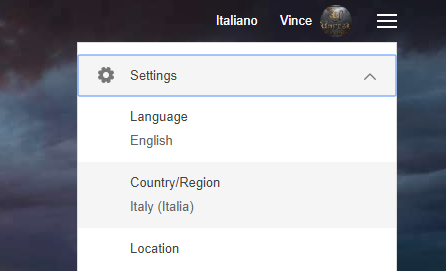
BING: For Bing, just click on the top right on the “settings” icon and then click on “Country/Region”
Then you will be able to choose the country/region desired for your searches.
Step 4. Get Data and Email addresses
After the search results appear click on the GET DATA button and the AUTOMATICALLY program will start to extract all the data from the results: site title, description, email address, website URL and PHONE numbers.
The same goes for choosing the Bing Search source and doing a search in it:
The e-mail address and phones will be searched directly on the website of the result, so it will be 100% consistent with the search you made.
If you want to extrapolate more emails there is a little trick. In addition to the search keyword (eg Hotel) also enter the keyword “@gmail.com”. So you can precisely enter Hotel AND “@gmail.com“. In this way the program will not only be able to extract emails from the website but also from the description that will contain any emails of type gmail.com.
Step 5. Export data and email addresses
Once you have captured all the data click on the SELECT button to select all the results and then on EXPORT to export all to an EXCEL or CSV or TXT file.
Choosing Excel you will get a file with the 4 columns shown in the following figure (in the third column you will find the email addresses extrapolated from the websites):
By default the CSV format is set but you can change the export format and choose Excel or TXT from the program settings (by clicking on the top of Settings):
From this window you can also choose the language of the program and set the column separator for the CSV file.
By clicking on the CONNECTION tab at the top, this other settings screen will open:
The parameters in this screen are useful if you want to “hide” your IP (especially if you use a fixed IP) to be able to do all the work of data extraction in an “anonymous” way. You can decide to use a VPN program or a Proxy (from a list or random)
Google Maps is certainly the largest database in the world when it comes to business data. On google maps there are all kinds of commercial activities and even freelancers. Regardless if you are looking for restaurants, pharmacies, manufacturing industries, doctors or hotels, on Google Maps you will surely find all the data you are looking for, and divided by location.
For those who want to do marketing, Google Maps becomes a reference tool because it allows you to see which and how many businesses of a particular type are present in a location. But is there a way to extract business data from Google Maps, such as company name, email address, telephone, fax, and so on? The answer to this question is yes.
Do you want to extract data from google maps on your PC? Do you want to save on Excel all the information that google maps contains such as: company name, telephone number, address, email, map url, coordinates, etc? The solution for all this is called G-Business Extractor
Created with the latest technology you can create your own contact list in seconds. You can search by any category, such as restaurants, cafes, clubs, hotels, and any place, city, province, and even country.
You can use zip codes to get more specific and targeted results. Now you will be able to gain insight into valuable business information, establish business contacts and be productive like never before.
How to extract data (email, phone numbers) from Google Maps with G-Business Extractor
Here is a detailed guide on how to use this software for this purpose. First you need to download the program and install it on your computer. The program is compatible with all Windows versions (Windows 11 included) and also macOS. To download the program go to the official download page.
After downloading the .exe file (on Windows) or .dmg file (on Mac), double-click on it to proceed with the installation. Once started you will see the following main screen:
Note: On Mac to make the program works it is needed to install Mozilla Firefox.
At this point you have to choose what to search for and the location. Click on ADD at the top left, in the “Categories” section to search for the type of company to search for (eg pizzerias, pubs …). In our example, suppose we want to search for “restaurants”:
On the right, in the “Locations” section, click on the ADD button to select the area, or city, or province or region in which to search (in our example we have entered the city of Rome as a search area):
Once you have decided what and where to search, click on the GET DATA button at the top to start the search. You can stop the search at any time by clicking on the STOP button. At the end of the search you will see all the results (category name, business name, address, city, email address, website url, phone number, map link) in the central program screen, as shown below:
Click on the SELECT ALL button and then click on the EXPORT button to proceed with the extraction of the data in an excel file.
NB: Unfortunately, in the DEMO version of the program, export is disabled
In order to have the EXPORT functionality enabled, it is necessary to purchase the program license. To do this, from the program, click on the button at the top of “Buy Full Version”
FREE GOOGLE MAPS DATA EXTRACTOR [CHROME EXTENSION]
2. Unzip the file and extract the folder GoogleMapsExtractor, save it on your desktop
3. On your chrome browser open chrome://extensions/
4. Click on Load Unpacked button and select the folder GoogleMapsExtractor to install it
5. Click on the icon extension to open it
6. Do a search (entering keyword and location) and clic on SEARCH button. Wait that Google Maps shows results and finally click on GET DATA to extract business name, address, phone number, website link and rating/reviews.
A similar tool is Bing Maps Data Extractor, it works like GoogleMaps Extractor described above but it capture data from BING MAPS. You can install this extension from this page on the chrome web store.
In this page we want to point out what we believe to be the best software to extract and scrape email addresses. Before seeing the list of these programs or services it is important to understand the type of email addresses you want to capture.
If you are looking for email addresses of companies or businesses or associations, then you could try using programs that can analyze and extract data and emails from directories such as yellow pages (every country has an “official” yellow pages site) or from Google Maps.
If you are also looking for emails from individuals (who still have email addresses published on the web) you could use other types of programs. However, 90% of the emails on the web are email addresses of companies, businesses or professionals. The email addresses of individuals are (rightly) protected and cannot be extracted, unless the owner has given explicit consent to its online publication to receive commercial communications.
Total Email Extractor is a powerful software (for Windows PC) that allows you to capture email addresses from the web, after entering the desired keywords.
The search is done at very high speed by analyzing all the results offered by Google and Bing. For each result the program searches for email addresses both in the snippet and on the website. The email addresses are then also verified in order to obtain 100% valid and clean emails.
Total Email Extractor configuration
As you can see from the figure above, it is possible to define a list of keywords and set the language of the results. Finally just click Start Search and and you will start to see all the emails extracted from the results
Here is a simple video tutorial that shows the simple steps to follow to start capturing email addresses from the Web.
In just a few minutes you will be able to collect thousands of targeted email addresses ready to use for your email marketing campaigns
NB: This service is based on Google and Bing search engine. Besides email addresses it is also possible to capture phone numbers.
#2. G-Business Extractor (for PC and Mac)
Among the best Email extractor and scraper software there is certainly G-Business Extractor, a simple but powerful program capable of extracting emails from Google Maps (and not only). It is available both for Windows and Mac users!
After you have downloaded and installed it on your computer, just set a search keyword and select a location (city, country or region). Then the program will automatically search for related information from Google Maps.
If an email address is missing from the company’s listing on Google Maps, the program will try to search for it on that company’s official website.
Another great program to extract company emails is Y-Leads Extractor. It extract data (and email) from yellow pages directories. Once installed, open it and you will be able to choose the Yellow Pages website to scrape (eg. Yellowpages.com, Justdial.com, Pagesjaunes.fr, Paginasamarillas.es, Gelbeseiten.de, etc.)
Then you need to do the desired search (for example “Hotel” in “New York”). After that the page results appear on the screen, click on GET DATA button and Y-Leads Extractor automatically will scrape all data (business name, email addresses, phone numbers, website url, category, etc.)
Finally select all extracted data and click on EXPORT button to save emails on Excel or CSV file.
#4. Google Bing Email Extractor
Google/Bing Email Extractor is a software that must be installed on the Windows PC and allows you to capture many email addresses from the internet. Below we see the details of how this program is used.
Google / Bing Email Extractor is a program that allows you to extract emails, find email addresses, collect and scan email addresses. It allows you to find and reach your customers. This software is able to create mailing lists at high speed. It allows you to extract email addresses based on the keywords of the pages of Internet websites, directories and search engines. You will be able to do Email Marketing and reach many potential customers because Google / Bing Email Extractor is able to extrapolate email addresses directly from the results shown by the most popular search engines. Click on the following link to download tthe free trial version of this email extractor software
Once the program has been downloaded and installed, this is the program interface:
The first thing you will need to do is click on the search engine to use for searching and capturing email addresses. You can choose between BING and GOOGLE. Once you have chosen the search engine, the Bing or Google home of your choice will open in the program.
At this point you will have to carry out the desired search by entering the keyword (or keywords) in the appropriate box and then press enter on the keyboard. This will show the top 10 results with the most relevant sites that match the keywords. At this point click on the GET DATA button and the program will start working.
Each address found is placed on its own line with some additional information — site title, site description and URL. When saving the results this additional information can be stored together with an address list. This is a good way to build a targeted mailing list with personalization details.
When e-mail addresses are found, you can save them to a file, copy them to the clipboard or export them to CSV or Excel. Simply click on an EXPORT button on the toolbar. Below is an example of results saved in Excel
#5. Social Email Extractor
Social Email Extractoris a powerful and innovative program able to search and scan public pages on the most important social networks like Linkedin, Facebook, Twitter and Instagram (that are indexed in the main Search Engine like Google/Bing/Yahoo)and then scrape and extract email addresses (of companies, professionals and individuals).
You can download the free trial version from the official website. Here is a screenshot of this email extractor software:






 When we talk about search engines we refer essentially to two “giants” of the sector, that is