G-Business Extractor es una herramienta que captura información de contacto de Ggoogle & Bing Maps como nombre, dirección, número de teléfono, sitios web, dirección de correo electrónico (e-mail) y otra información importante.
Este software “Google & Bing Maps Extractor” te permite crear una lista de prospectos en segundos. Puede buscar por palabra clave o categoría, como restaurantes, cafe clubs y hoteles, y en cualquier ubicación, ciudad, estado o país. Puede usar códigos postales o radio en metros para obtener resultados más precisos.
Ahora podrá generar las mejores ventas de páginas de Google Maps, podrá hacer más contactos comerciales y ser productivo como nunca antes.
La versión de G-Business Extractor para Mac ya está disponible también. Haga clic en el botón a continuación para ir a la página de detalles desde donde puede descargar la versión de demostración gratuita de la aplicación compatible con macOS.
Cómo usar G-Business Extractor para extrapolar correos electrónicos, direcciones y teléfonos de Google Maps
Paso 1. Descargue, instale e inicie el programa G-Business Extractor
Paso 2. Haz clic en “ADD” para ingresar a la categoría y ubicación de búsqueda
Paso 3. Haz clic en “GET DATA” para comenzar a capturar los datos
Paso 4. Click SELECT ALL –>EXPORT para guardar datos en su computadora en formato CSV o XLS
Si ve muchos duplicados durante la captura, significa que la herramienta no encuentra otros resultados y puede DETENER y EXTRAER datos.
Si busca categorías de nicho en una ciudad determinada, le sugerimos que siga estos pasos para evitar duplicados y completar la tarea en pocos minutos.
PASO 1. Abra el software y vaya a SETTINGS y configure de 5 a 10 resultados por código postal como se muestra a continuación
PASO 2. Establezca la palabra clave y la ubicación. Sobre la ubicación, solo necesita seleccionar la ciudad y seleccionar todos los códigos postales.
PASO 3. Haga clic en GET DATA para comenzar a capturar datos
PASO 4. Exporte datos y no tendrá duplicados
Exportación automática y VPN
El programa guarda automáticamente los datos durante la captura. Este guardado automático le permite no perder datos si por casualidad el programa se cierra repentinamente. Para acceder a los datos guardados automáticamente, vaya a SETTINGS y haga clic en el botón APPDATA FOLDER. Esto abrirá una carpeta donde encontrará el archivo export.txt (con los datos guardados automáticamente para todas las búsquedas que ha realizado).
Esta exportación automática se introdujo porque después de unas horas de trabajo, Google podía bloquear la aplicación. Para reducir el riesgo de bloqueo, recomendamos utilizar un software VPN que pueda cambiar dinámicamente las direcciones IP cada 10 a 20 minutos (para obtener más información Lee este artículo)
G-Business Extractor (B2B Leads Extractor) è un programma innovativo che cattura ed estrae le informazioni come indirizzo, nome azienda, numero di telefono indirizzo email, sito web, direttamente da Google Maps e Bing Maps.
Creato con le più moderne tecnologie è possibile creare il proprio elenco di contatti in pochi secondi. È possibile cercare in base a una qualsiasi categoria, come ristoranti, caffè, club, alberghi e in per qualsiasi località, città, provincia e persino paese. Supporta l’estrazione di dati aziendali (ragione sociale, indirizzo, telefono, email, ecc…) non solo per l’Italia ma anche per l’Estero (Spagna, Francia, Germania, USA, ecc..). È possibile utilizzare i codici di avviamento postale (CAP o ZIP CODE) per ottenere risultati più specifici e mirati per località.
Sarai finalmente in grado di ottenere in dettaglio informazioni preziose per il tuo business, stabilire contatti d’affari ed essere produttivi come mai prima. Clicca sul pulsante qui sotto per scaricare la versione demo gratuita del programma:
Programma compatibile con Windows 11/10/8 – computer a 64 bit con almeno 8-16GB di ram. Licenza senza limiti di dati estraibili e valida 1 anno. Verifica l’ultima versione rilasciata da questa pagina
E’ adesso disponibile anche la versione di G-Business Extractor per Mac. Fai clic sul pulsante qui sotto per accedere alla pagina di dettaglio da cui potrai scaricare la versione demo gratuita dell’app compatibile con macOS.
Di seguito una guida dettagliata su come utilizzare questo software. Il funzionamento è praticamente lo stesso sia su Windows che su Mac!
[GUIDA] Come si usa G-Business Extractor
Passo 1.
SCARICA e INSTALLA il programma G-Business Extractor. Una volta avviato vedrai la seguente schermata principale:
Passo 2.
Seleziona Sorgente dati in alto a destra: potrai scegliere tra Google Maps (opzione impostata di default) e Bing Maps (ha il vantaggio di una cattura dati più veloce)
Poi dovrai scegliere cosa ricercare e la località. Clicca su ADD a sinistra sotto la sezione “Categories” per scrivere la tipologia dell’azienda da ricercare (es. pizzerie, pub, hotel, farmacie…). Nel nostro esempio supponiamo di voler ricercare “hotel”:
Puoi anche inserire più categorie, ad esempio se cerchi tutte le attività di ristorazione in una città, o in un singolo CAP, potrai inserire le seguenti categorie: bar, pasticceria, caffè, gelateria, pub, ristorante, ecc…
A destra, nella sezione “Locations” clicca sul bottone ADD per selezionare la Nazione, Regione, Provincia, Città o CAP in cui effettuare la ricerca (nel nostro esempio abbiamo inserito la città di Roma come zona di ricerca):
Clicca su OK per ritornare alla schermata iniziale
NB: Prima di iniziare la ricerca e l’estrazione, se desideri catturare anche gli indirizzi email, clicca in alto sul pulsante SETTINGS e poi accedi alla scheda DATA. A questo punto assicurati che sia selezionato il box “Extract emails from websites (Slow Process)” come è evidenziato nella figura seguente:
Altre opzioni disponibili sono:
AUTO EXPORT (attivo solo nella versione PRO): consente di accedere ad un file che cattura in automatico tutti i risultati in modo da evitare di perdere dati dopo una estrazione.
AUTO RESTART: opzione che consente di riavviare in automatico il programma in caso di chiusura o crash improvviso e di riprendere l’estrazione dal punto interrotto
THREADS: è il numero di processi in parallelo che il programma usa per estrarre i dati, per PC veloci puoi impostare un valore pari o superiore a 3, altrimenti va ridotto a 2.
Clicca su OK per ritornare alla schermata iniziale.
Passo 3.
Una volta deciso cosa e dove ricercare clicca sul bottone GET DATA per avviare la ricerca. Potrai interrompere la ricerca in qualsiasi momento cliccando sul bottone STOP. Alla fine della ricerca vedrai tutti i risultati nella schermata centrale del programma, come mostrato di seguito:
Clicca sulla destra su SELECT ALL e poi clicca sul pulsante EXPORT per procedere all’estrazione dei dati in un file di formato CSV. Questo file è facilmente importabile in excel (se non sai come fare leggi questo articolo)
NB: Nella versione DEMO del programma purtroppo l’export non è abilitato, infatti dopo 100 risultati estratti comparirà una finestra che ti chiede se vuoi acquistare la versione completa.
Per poter avere la funzionalità di EXPORT abilitata è necessario acquistare la licenza del programma. Per far ciò bisogna cliccare dal programma sul bottone presente in alto BUY oppure richiedi la versione completa del programma cliccando qui (senza limitazioni di dati estraibili e licenza valida per 1 anno).
NOTA 1. Se vedi parecchi risultati duplicati durante la cattura dei dati, vuol dire che il programma non trova altri risultati per quella parola chiave e località. In tal caso puoi fermare la ricerca ed estrapolare i risultati trovati. In ogni caso, se stai facendo delle ricerche di categorie aziendali “di nicchia” (ad esempio “Imprese di costruzione” o “tatuaggi”, ecc..) in una determinata città, ti consigliamo di accedere al menu SETTINGS e qui impostare 10 risultati per CAP (e non 30 come di default) nel campo “Results per zip code“.
NOTA 2. Il programma effettua un salvataggio automatico dei dati durante la cattura. Questo salvataggio automatico consente di non perdere dati se per caso il programma dovrebbe chiudersi improvvisamente. Per accedere ai dati salvati in automatico vai in SETTINGS e clicca sul pulsante APPDATA FOLDER. Si aprirà una cartella in cui troverai il file export.txt (con i dati salvati automaticamente per tutte le ricerche che hai fatto).
Vuoi recuperare ed estrapolare tutti gli indirizzi email presenti nel tuo accountGMAIL ma non sai proprio come fare? In questo articolo troverai le soluzioni che stavi cercando da tempo! Abbiamo due soluzioni (una software e un plugin) per poter estrarre dati da GMAIL.
SOFTWARE (WINDOWS): Se vuoi scaricare tutti gli allegati da Gmail prova il programma GMAIL ATTACHMENT EXTRACTOR
ESTENSIONE PER CHROME : Se vuoi estrarre solo indirizzi email da Gmail allora prova INBOX EMAIL COLLECTOR.
Cosa è Inbox Email Collector?
La capacità di raccogliere in modo efficiente le informazioni dalle caselle di posta elettronica è diventata essenziale sia per i professionisti che per le aziende. Che tu stia raccogliendo lead, organizzando elenchi di clienti o aggiornando database di contatti, setacciare manualmente le e-mail di GMAIL per estrarre gli indirizzi può essere dispendioso in termini di tempo e noioso. Grazie però a Inbox Email Collector, un’estensione di Chrome, potrai automatizzare il processo di estrazione delle e-mail dalla tua casella di posta di Gmail. Con le sue funzionalità avanzate e la facilità d’uso, questo strumento si distingue come una soluzione efficace per la raccolta di indirizzi e-mail.
Inbox Email Collector è un’estensione Chrome intuitiva creata appositamente per estrarre indirizzi email dagli account Gmail. A differenza degli strumenti di estrazione di base che catturano solo gli indirizzi dei mittenti, Inbox Email Collector va oltre, analizzando intere conversazioni per tutti gli indirizzi email menzionati nel corpo delle email. Ciò lo rende una soluzione versatile per chiunque abbia bisogno di un modo completo e automatizzato per raccogliere contatti senza perdere dettagli vitali nascosti nel contenuto delle email.
Lascia che l’estensione esegua automaticamente la scansione della tua posta in arrivo. Se selezioni il box AUTO EXTRACTION l’estensione analizzerà in automatico anche le pagine successive di GMAIL.
Una volta completato, salva gli indirizzi email estratti come file .txt per un uso futuro.
Caratteristiche principali di Inbox Email Collector
Estrazione completa di email
Uno dei punti di forza principali di Inbox Email Collector è la sua capacità di estrarre indirizzi email da più posizioni all’interno di un thread di email. Mentre molti strumenti si concentrano solo sugli indirizzi dei mittenti, questa estensione può estrarre indirizzi email dall’intera conversazione. Se un thread di email contiene email inoltrate, CC o persino indirizzi menzionati nel testo, Inbox Email Collector li catturerà tutti.
Scansione automatica dell’intera posta in arrivo
Un’altra caratteristica di spicco è la capacità dell’estensione di scansionare tutte le pagine della posta in arrivo di Gmail, non solo le prime. Che tu abbia accumulato anni di email o solo poche settimane, Inbox Email Collector analizzerà ogni pagina, assicurandoti un’estrazione completa e approfondita degli indirizzi. È ideale per gli utenti con lunghe cronologie di email che desiderano catturare ogni possibile contatto.
Funzionamento senza interruzioni
La parte migliore di Inbox Email Collector è la sua semplicità e automazione. Una volta installato e attivato, funziona dietro le quinte senza richiedere un input continuo da parte dell’utente. Basta configurarlo e inizierà a scansionare automaticamente la posta in arrivo. Questa operazione a mani libere ti consente di concentrarti su altre attività mentre l’estensione esegue il lavoro di estrazione e compilazione degli indirizzi e-mail.
Estrae e-mail dal corpo dell’e-mail
Oltre agli indirizzi del mittente, Inbox Email Collector brilla nella sua capacità di cercare all’interno del contenuto delle e-mail. Molte conversazioni contengono più indirizzi nel corpo, spesso da messaggi inoltrati o discussioni con più destinatari. Catturando questi indirizzi, l’estensione assicura che non ti perda nessun contatto che potrebbe essere prezioso per campagne di marketing, generazione di lead o networking personale.
Esporta in file di testo
Una volta completato il processo di estrazione, Inbox Email Collector consente agli utenti di salvare tutti gli indirizzi e-mail raccolti come file di testo (.txt). Questo formato semplice semplifica il trasferimento dei dati ad altre piattaforme come sistemi CRM, strumenti di e-mail marketing o software di fogli di calcolo per un’ulteriore gestione o segmentazione.
Facilità d’uso
Nonostante le sue potenti funzionalità, l’estensione è incredibilmente semplice da usare. L’interfaccia è progettata per una facile navigazione, anche per coloro che hanno un’esperienza tecnica minima. Gli utenti possono installare l’estensione dal Chrome Web Store, avviarla con un solo clic e iniziare il processo di estrazione delle e-mail senza complesse impostazioni o istruzioni.
Applicazioni per diversi utenti
La versatilità di Inbox Email Collector lo rende adatto a un’ampia gamma di casi d’uso. Per le aziende, può fungere da strumento di generazione di lead, consentendo di acquisire i dettagli dei contatti da richieste passate e conversazioni e-mail. I professionisti del marketing possono utilizzarlo per creare elenchi e-mail segmentati per campagne mirate, mentre i liberi professionisti e i professionisti possono trovarlo utile per il networking, il follow-up con i clienti o la compilazione di elenchi di contatti per l’outreach.
Inoltre, i team di assistenza clienti possono trarre vantaggio dallo strumento acquisendo tutte le e-mail dei clienti dalle interazioni passate, aiutandoli a mantenere aggiornati i record dei contatti. La sua capacità di acquisire indirizzi e-mail sia dal mittente che dal corpo dell’e-mail garantisce che nessun contatto passi inosservato.
Inbox Email Collector fornisce un modo efficiente e automatizzato per estrarre indirizzi e-mail da Gmail, rendendolo uno strumento prezioso per chiunque abbia bisogno di compilare elenchi e-mail da conversazioni passate. Grazie alla sua capacità di scansionare ogni pagina della posta in arrivo e di catturare gli indirizzi sia dai mittenti che dal corpo dell’email, offre una soluzione completa che può far risparmiare ore di lavoro manuale. La sua semplicità, automazione e opzioni di esportazione lo rendono accessibile a un’ampia gamma di utenti, dai professionisti del marketing e aziendali agli utenti privati che desiderano organizzare i propri contatti.
Social Phone Extractor 7 is a powerful (and popular) software that enables users to extract phone numbers (included WhatsApp numbers) from various social media platforms. With this tool, users can quickly and easily extract phone numbers from platforms such as Facebook, Twitter/X.com, LinkedIn, TikTok and Instagram.
This software tool is designed to simplify the process of phone number extraction, making it an invaluable tool for businesses and individuals who require telephone numbers for marketing, networking, or other purposes.
How to use Social Phone Extractor [Chrom Extension]
First of all install Social Phone Extractor on your computer (Chrome) from the following link:
Once installed, click on the icon at the top of Chrome browser and you will see following screen:
The app is very simple to use. Go to the Phone Search tab and enter the keywords, location, social netwotk and type of phone to search. Then click on SEARCH ON GOOGLE
Once you see “Search opened successfully” you need to click on GET DATA button, and the app will start to open and scann all results to find and collect email addresses.
Once finished you can click on EXPORT PHONES button.
Note: The free version allows you to export max 25 phones in the CSV file. For no limitation you need to purchase the Unlock Code.
Below a short video that shows how Social Phone Extractor works!
How to use Social Phone Extractor [Windows software]
First of all download Social Phone Extractor from following button:
You will download a file called SocialPhoneExtractor.exe. Double click to install the program on your PC.
This is the main screen of the program:
Social Phone Extractor 7 works by scanning the social media platforms for telephone numbers. The tool is designed to use advanced algorithms to locate valid phont numbers which it then extracts and saves to a file.
To use the tool, you need to fill out the form you see on the home screen.
KEYWORD / CATEOGORY : use a keyword that matches the type of numbers you want to capture (for example”Restaurant” or “Hotel” and so on…)
LOCATION: It is optional and here you can enter for example the city or region in which you are looking for results
SOCIAL NETWORK: you can choose the desired social network to scan: Facebook, Instagram, LinkedIn, Twitter/X.com, TikTok. If you want to do a general search via Google instead, set AllTheWeb option.
PHONE COUNTRY CODE: select the Country (and country code), for example the country code for India is +91, for United States +1, For Germany +49 and so on.
PHONE TYPE: The program can search for “generic” phone numbers and for “only WhatsApp” phone numbers. Once you collect WhatsApp numbers you can also use tools like WhatSender to send bulk WhatsApp Messages to all that numbers.
Once you choose the options click on SUBMIT button and wait for the Google page with the search results to open.
Finally click on GET DATA. At the bottom of the program you will see all the results and the emails extracted from those results.
The numbers will appear under the column “Phone Number” and can be saved to a file in various formats, including CSV, Excel, and Text. This makes it easy for users to import the email addresses into other software tools.
With the free version it is possible to extract max 35 results per search (and the EXPORT button is disabled). To remove this limitation you can purchase the PRO version from following button (the cost is 29 USD ONLY)
Once purchased the PRO version you will receive a license Key. Go to the HELP–REGISTRATION menu on the top bar menu and then enter your email and reg key to activate the program and extract unlimited phone numbers!
NOTE: Google search does not show unlimited results for each search. It usually only shows the first 100-200 results. Social Phone Extractor also extracts these results for each search performed. In order to extract as many phone numbers as possible, we recommend doing multiple searches, using different keywords. If you are looking for a way that automatically searches for multiple keywords and multiple social networks at the same time, we recommend trying TOTAL EMAIL EXTRACTOR (a more advanced version of Social Phone an Social Email Extractor)
Social Email Extractor 7 is a powerful (and popular) software that enables users to extract email addresses from various social media platforms. With this tool, users can quickly and easily extract email addresses from platforms such as Facebook, Twitter, LinkedIn, and Instagram.
This software tool is designed to simplify the process of email address extraction, making it an invaluable tool for businesses and individuals who require email addresses for marketing, networking, or other purposes.
How to use Social Email Extractor [Chrom Extension]
First of all install Social Email Extractor on your computer (Chrome) from the following link:
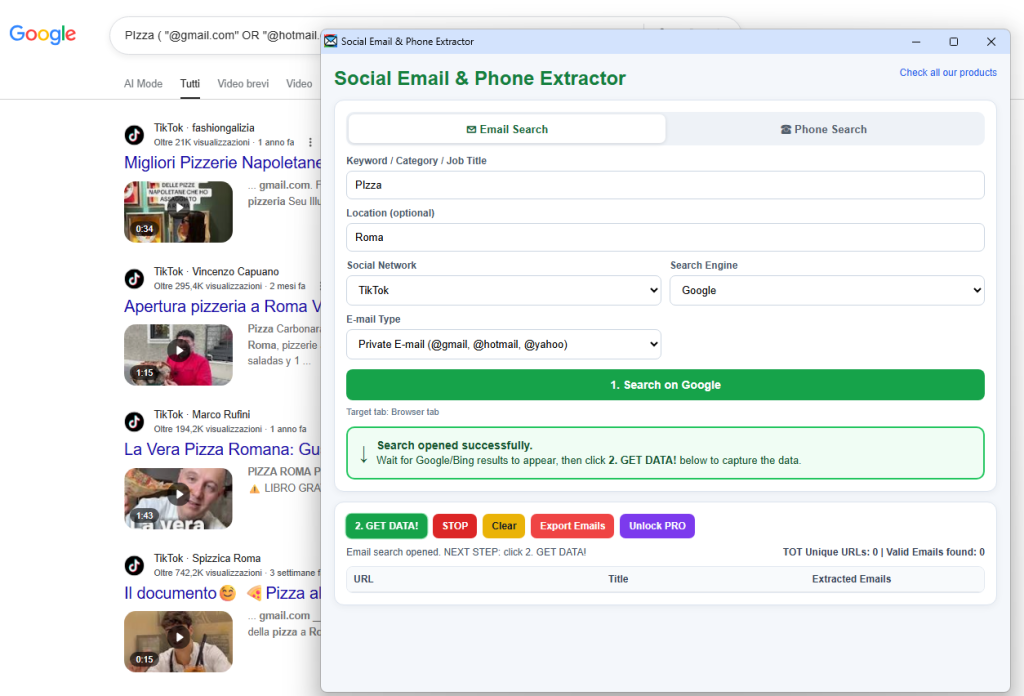
Once installed, click on the icon at the top of Chrome browser and you will see following screen:
The app is very simple to use. You just need to enter the keyword, location, social netwotk and type of email to search. Then click on SEARCH ON GOOGLE
Once you see “Search opened successfully” you need to click on GET DATA button, and the app will start to open and scann all results to find and collect email addresses.
Once finished you can click on EXPORT EMAILS button.
Note: The free version allows you to export max 25 emails in the CSV file. For no limitation you need to purchase the Unlock Code.
Below a short video that shows how Social Email Extractor works!
How to use Social Email Extractor [Windows software]
First of all download Social Email Extractor from following button:
You will download a file called SocialEmailExtractor.exe. Double click on it to install the program on your PC.
Social Email Extractor 7 works by scanning the social media platforms for email addresses. The tool is designed to use advanced algorithms to locate email addresses, which it then extracts and saves to a file.
To use the tool, you need to fill out the form you see on the home screen.
KEYWORD / CATEOGORY : use a keyword that matches the type of email you want to capture (for example”Restaurant” or “Hotel” and so on…)
LOCATION: It is optional and here you can enter for example the city or region in which you are looking for results
SOCIAL NETWORK: you can choose the desired social network to scan: Facebook, Instagram, LinkedIn, Twitter/X.com, TikTok. If you want to do a general search via Google instead, set AllTheWeb option.
EMAIL TYPE: The program can search for “private” emails such as gmail.com, hotmail, yahoo, or business emails. In the latter case, the program will search using the AllTheWeb option and will search for business emails from sites listed by google.
Once you choose the options click on SUBMIT button and wait for the Google page with the search results to open.
Finally click on GET DATA. At the bottom of the program you will see all the results and the emails extracted from those results.
The extracted email addresses can be saved to a file in various formats, including CSV, Excel, and Text. This makes it easy for users to import the email addresses into other software tools, such as email marketing software or CRM software.
With the free version it is possible to extract max 35 results per search (and the EXPORT button is disabled). To remove this limitation you can purchase the PRO version from following button (the cost 29 USD ONLY)
Once purchased the PRO version you will receive a license Key. Go to the HELP–REGISTRATION menu on the top bar menu and then enter your email and reg key to activate the program and extract unlimited email addresses!
NOTE: Google search does not show unlimited results for each search. It usually only shows the first 100-200 results. Social Email Extractor also extracts these results for each search performed. In order to extract as many emails as possible, we recommend doing multiple searches, using different keywords. If you are looking for a way that automatically searches for multiple keywords and multiple social networks at the same time, we recommend trying TOTAL EMAIL EXTRACTOR (a more advanced version of Social Email Extractor)
There are several benefits to using Social Email Extractor Pro. First and foremost, the tool can save users a significant amount of time and effort when it comes to email address extraction.
Manually extracting email addresses from social media platforms can be a time-consuming and tedious task. With Social Email Extractor, users can extract email addresses from multiple platforms in a matter of minutes.
In addition to saving time, the tool can also help users to increase their marketing and networking efforts. With access to a large database of email addresses, users can target their marketing campaigns more effectively and reach a larger audience.
Finally, the tool is designed to be user-friendly, with a simple and intuitive interface. This makes it easy for users of all levels of technical expertise to use the tool effectively.
Social Email Extractor is a powerful software tool that enables users to extract email addresses from various social media platforms. The tool is designed to simplify the process of email address extraction, saving users time and effort.
1. Create your own email list
One of the most common ways to use email addresses extracted with Social Email Extractor is to build an email list for marketing purposes. With a large database of email addresses, you can create targeted email campaigns that promote your products or services. By sending personalized emails to potential customers, you can increase your sales and generate revenue.
2. Offer Email Marketing Services
If you have experience in email marketing, you can offer your services to businesses that need help with their email campaigns. By using Social Email Extractor Pro to extract email addresses, you can provide your clients with a targeted list of potential customers. You can then help them create and execute email campaigns that drive traffic and generate revenue.
3. Sell the Extracted Email Addresses
While selling email addresses is not always ethical or legal, there are some cases where it is acceptable. For example, if you have extracted email addresses from a public source, such as a business directory or a social media platform, you may be able to sell the list to businesses that are interested in reaching that target market. However, it is important to research the legal and ethical implications of selling email lists before doing so.
4. Use Affiliate Marketing
Affiliate marketing is a popular way to make money online, and it can be used in conjunction with Social Email Extractor Pro. By using the tool to extract email addresses, you can create a targeted email campaign that promotes affiliate products. When a recipient clicks on the affiliate link in the email and makes a purchase, you earn a commission.
5. Offer Lead Generation Services
Lead generation is the process of identifying potential customers for a business. By using Social Email Extractor Pro to extract email addresses, you can provide businesses with a list of potential leads. You can then offer your services to help them convert those leads into paying customers.
Google Maps is certainly the largest database in the world when it comes to business data. On google maps there are all kinds of commercial activities and even freelancers. Regardless if you are looking for restaurants, pharmacies, manufacturing industries, doctors or hotels, on Google Maps you will surely find all the data you are looking for, and divided by location.
For those who want to do marketing, Google Maps becomes a reference tool because it allows you to see which and how many businesses of a particular type are present in a location. But is there a way to extract business data from Google Maps, such as company name, email address, telephone, fax, and so on? The answer to this question is yes.
Do you want to extract data from google maps on your PC? Do you want to save on Excel all the information that google maps contains such as: company name, telephone number, address, email, map url, coordinates, etc? The solution for all this is called G-Business Extractor
Created with the latest technology you can create your own contact list in seconds. You can search by any category, such as restaurants, cafes, clubs, hotels, and any place, city, province, and even country.
You can use zip codes to get more specific and targeted results. Now you will be able to gain insight into valuable business information, establish business contacts and be productive like never before.
How to extract data (email, phone numbers) from Google Maps with G-Business Extractor
Here is a detailed guide on how to use this software for this purpose. First you need to download the program and install it on your computer. The program is compatible with all Windows versions (Windows 11 included) and also macOS. To download the program go to the official download page.
After downloading the .exe file (on Windows) or .dmg file (on Mac), double-click on it to proceed with the installation. Once started you will see the following main screen:
Note: On Mac to make the program works it is needed to install Mozilla Firefox.
At this point you have to choose what to search for and the location. Click on ADD at the top left, in the “Categories” section to search for the type of company to search for (eg pizzerias, pubs …). In our example, suppose we want to search for “restaurants”:
On the right, in the “Locations” section, click on the ADD button to select the area, or city, or province or region in which to search (in our example we have entered the city of Rome as a search area):
Once you have decided what and where to search, click on the GET DATA button at the top to start the search. You can stop the search at any time by clicking on the STOP button. At the end of the search you will see all the results (category name, business name, address, city, email address, website url, phone number, map link) in the central program screen, as shown below:
Click on the SELECT ALL button and then click on the EXPORT button to proceed with the extraction of the data in an excel file.
NB: Unfortunately, in the DEMO version of the program, export is disabled
In order to have the EXPORT functionality enabled, it is necessary to purchase the program license. To do this, from the program, click on the button at the top of “Buy Full Version”
FREE GOOGLE MAPS DATA EXTRACTOR [CHROME EXTENSION]
2. Unzip the file and extract the folder GoogleMapsExtractor, save it on your desktop
3. On your chrome browser open chrome://extensions/
4. Click on Load Unpacked button and select the folder GoogleMapsExtractor to install it
5. Click on the icon extension to open it
6. Do a search (entering keyword and location) and clic on SEARCH button. Wait that Google Maps shows results and finally click on GET DATA to extract business name, address, phone number, website link and rating/reviews.
A similar tool is Bing Maps Data Extractor, it works like GoogleMaps Extractor described above but it capture data from BING MAPS. You can install this extension from this page on the chrome web store.
In this page we want to point out what we believe to be the best software to extract and scrape email addresses. Before seeing the list of these programs or services it is important to understand the type of email addresses you want to capture.
If you are looking for email addresses of companies or businesses or associations, then you could try using programs that can analyze and extract data and emails from directories such as yellow pages (every country has an “official” yellow pages site) or from Google Maps.
If you are also looking for emails from individuals (who still have email addresses published on the web) you could use other types of programs. However, 90% of the emails on the web are email addresses of companies, businesses or professionals. The email addresses of individuals are (rightly) protected and cannot be extracted, unless the owner has given explicit consent to its online publication to receive commercial communications.
Total Email Extractor is a powerful software (for Windows PC) that allows you to capture email addresses from the web, after entering the desired keywords.
The search is done at very high speed by analyzing all the results offered by Google and Bing. For each result the program searches for email addresses both in the snippet and on the website. The email addresses are then also verified in order to obtain 100% valid and clean emails.
Total Email Extractor configuration
As you can see from the figure above, it is possible to define a list of keywords and set the language of the results. Finally just click Start Search and and you will start to see all the emails extracted from the results
Here is a simple video tutorial that shows the simple steps to follow to start capturing email addresses from the Web.
In just a few minutes you will be able to collect thousands of targeted email addresses ready to use for your email marketing campaigns
NB: This service is based on Google and Bing search engine. Besides email addresses it is also possible to capture phone numbers.
#2. G-Business Extractor (for PC and Mac)
Among the best Email extractor and scraper software there is certainly G-Business Extractor, a simple but powerful program capable of extracting emails from Google Maps (and not only). It is available both for Windows and Mac users!
After you have downloaded and installed it on your computer, just set a search keyword and select a location (city, country or region). Then the program will automatically search for related information from Google Maps.
If an email address is missing from the company’s listing on Google Maps, the program will try to search for it on that company’s official website.
Another great program to extract company emails is Y-Leads Extractor. It extract data (and email) from yellow pages directories. Once installed, open it and you will be able to choose the Yellow Pages website to scrape (eg. Yellowpages.com, Justdial.com, Pagesjaunes.fr, Paginasamarillas.es, Gelbeseiten.de, etc.)
Then you need to do the desired search (for example “Hotel” in “New York”). After that the page results appear on the screen, click on GET DATA button and Y-Leads Extractor automatically will scrape all data (business name, email addresses, phone numbers, website url, category, etc.)
Finally select all extracted data and click on EXPORT button to save emails on Excel or CSV file.
#4. Google Bing Email Extractor
Google/Bing Email Extractor is a software that must be installed on the Windows PC and allows you to capture many email addresses from the internet. Below we see the details of how this program is used.
Google / Bing Email Extractor is a program that allows you to extract emails, find email addresses, collect and scan email addresses. It allows you to find and reach your customers. This software is able to create mailing lists at high speed. It allows you to extract email addresses based on the keywords of the pages of Internet websites, directories and search engines. You will be able to do Email Marketing and reach many potential customers because Google / Bing Email Extractor is able to extrapolate email addresses directly from the results shown by the most popular search engines. Click on the following link to download tthe free trial version of this email extractor software
Once the program has been downloaded and installed, this is the program interface:
The first thing you will need to do is click on the search engine to use for searching and capturing email addresses. You can choose between BING and GOOGLE. Once you have chosen the search engine, the Bing or Google home of your choice will open in the program.
At this point you will have to carry out the desired search by entering the keyword (or keywords) in the appropriate box and then press enter on the keyboard. This will show the top 10 results with the most relevant sites that match the keywords. At this point click on the GET DATA button and the program will start working.
Each address found is placed on its own line with some additional information — site title, site description and URL. When saving the results this additional information can be stored together with an address list. This is a good way to build a targeted mailing list with personalization details.
When e-mail addresses are found, you can save them to a file, copy them to the clipboard or export them to CSV or Excel. Simply click on an EXPORT button on the toolbar. Below is an example of results saved in Excel
#5. Social Email Extractor
Social Email Extractoris a powerful and innovative program able to search and scan public pages on the most important social networks like Linkedin, Facebook, Twitter and Instagram (that are indexed in the main Search Engine like Google/Bing/Yahoo)and then scrape and extract email addresses (of companies, professionals and individuals).
You can download the free trial version from the official website. Here is a screenshot of this email extractor software:
Daten und E-Mails aus Google Maps extrahieren mit G-Business Extractor
G-BUSINESS EXTRACTORist ein Tool, mit Kontakt informationen wie Firmenname, E-Mail Adresse, Telefonnummer, Webseiten, Anzahl der Vorlieben und andere wichtige Informationen aus GOOGLE & BING MAPS einfängt.
Unsere Software-Nutzung Google Maps um eine Liste der Leads in wenigen Sekunden. Sie können durch eine beliebige Kategorie oder Stichwort wie Restaurants, Coffee-Clubs und Hotels und an jedem Ort, Stadt, Staat oder Land zu suchen. Sie können Postleitzahlen oder einen Radius in Metern verwenden, um genauere Ergebnisse zu erzielen.
Jetzt sind Sie in der Lage, Umsatz zu generieren führt rigth von GoogleMaps-Seiten, können Sie mehr Geschäftskontakte und produktiv sein wie nie zuvor.
La version de G-Business Extractor pour Mac est désormais également disponible. Cliquez sur le bouton ci-dessous pour accéder à la page de détail à partir de laquelle vous pouvez télécharger la version démo gratuite de l’application compatible avec macOS.
SCREENSHOT:
Wie extrahiere Daten und E-Mail aus Google Maps?
Schritt 1. Installieren und starten Sie das Programm G-Business Extractor
Schritt 2. Klicken Sie auf ADD, um die Kategorie und den Ort auszuwählen
Schritt 3. Klicken Sie auf GET DATA
Schritt 4. Klicken Sie auf EXPORT, um die Daten auf Ihrem Computer zu speichern
Das Programm speichert automatisch Daten während der Erfassung. Durch dieses automatische Speichern können Sie keine Daten verlieren, wenn das Programm zufällig plötzlich geschlossen wird. Um auf die automatisch gespeicherten Daten zuzugreifen, gehen Sie zu SETTINGS und klicken Sie auf die Schaltfläche APPDATA FOLDER.
Dadurch wird ein Ordner geöffnet, in dem Sie die Datei export.txt finden (mit den automatisch gespeicherten Daten für alle von Ihnen durchgeführten Suchvorgänge).
ZUSÄTZLICHE BEMERKUNGEN:
Wenn Sie während der Erfassung viele Duplikate sehen, bedeutet dies, dass das Tool keine anderen Ergebnisse findet und Sie Daten STOPPEN und EXTRAHIEREN können.
Wenn Sie nach Nischenkategorien in einer bestimmten Stadt suchen, empfehlen wir Ihnen, diese Schritte zu befolgen, um Duplikate zu vermeiden und die Aufgabe in wenigen Minuten abzuschließen.
SCHRITT 1. Öffnen Sie die Software und gehen Sie zu EINSTELLUNGEN und stellen Sie 5-10 Ergebnisse pro Postleitzahl ein, wie unten gezeigt
SCHRITT 2. Legen Sie das Schlüsselwort und den Ort fest. Über den Standort müssen Sie nur die Stadt auswählen und alle Postleitzahlen auswählen.
SCHRITT 3. Klicken Sie auf GET DATA, um mit der Datenerfassung zu beginnen
SCHRITT 4. Exportieren Sie Daten und Sie werden keine Duplikate haben
Potente software in grado di scansionare i principali siti di annunci italiani online per estrarre importanti informazioni come numeri di cellulare, numeri di telefono, descrizione annuncio, foto presenti nell’annuncio, nome dell’inserzionista e anche l’indirizzo email (se presente in chiaro all’interno della descrizione dell’annuncio stesso) ecc…
Con questa applicazione puoi effettuare ricerche al 100% personalizzabili per ottenere target di utenti mirati (sia PRIVATI che AZIENDE) da contattare telefonicamente (o via email) o liste di annunci da consultare comodamente in modalità off-line. Basta selezionare la sorgente (ebay, bakeca, secondamano.it,..), poi selezionare categoria e non appena si apre la pagina con gli annunci di quella categoria, fare clic sul bottone “CATTURA” ed è fatto! Tutti i risultati saranno estratti e formattati in una lista che potrai visualizzare e salvare in un file CSV, TXT o EXCEL.
Il programma cerca informazioni da siti di annunci italiani, in modo molto rapido ed efficiente. Tra i siti di annunci supportati da questo programma troviamo:
SUBITO.IT (www.subito.it) è il più famoso sito di annunci italiano con migliaia di nuove inserzioni ogni giorno. E’ possibile trovare qualsiasi tipo di annuncio su questo portale, da annunci immobiliari a oggetti di antiquariato, da dispositivi informatici ad accessori ed abbigliamento. Con Spider Annunci potrai catturare preziose info da questo sito in pochi click!
Bakeca.it: raggiungibile alla url www.bakeca.it Il sito è diviso per regioni ed è possibile fare una ricerca a partire dalla città che più ci interessa. Ovviamente sono elencati i capoluoghi di provincia ed alcune delle città più importanti di ogni regione. Oltre alla suddivisione per città è presente la suddivisione in diverse categorie: su Bakeca, infatti, è possibile cercare di tutto dalle stanze in affitto ai libri, dalle auto usato a un posto di lavoro.
Kijij (www.kijiji.it) rappresenta il sito di annunci online ufficiale di Ebay. Esso contiene migliaia di annunci di offerte di lavoro, annunci auto, case e compravendita in tutte le città di italia. E’ possibile ricercare per singola città oppure effettuare una ricerca a livello nazionale per vedere tutti gli annunci.
Kijiji è oggi il sito di annunci italiano più popolare e visitato, anche grazie alla pubblicità che è presente su ebay.
Secondamano.it è un altro famoso sito di annunci italiano che racchiude migliaia e migliaia di annunci di ogni tipologia e categoria. Anche in tal caso è possibile visualizzare gli annunci per categoria, per regione, per località e anche per parola chiave.
Gli inserzionisti sono sia privati che aziende.
AutoScout24 (www.autoscout24.it) è il più popolare sito di annunci relativi ai motori (auto, moto, camper, ecc..) con migliaia di annunci pubblicati ogni giorno. Anche in tal caso è possibile visualizzare gli annunci per tipologia di mezzo, per regione, località e anche per parola chiave.
Gli inserzionisti sono sia privati che aziende.
Una volta effettuata la ricerca e ottenuti i dati, sarà possibile effettuare l’esportazione in un file CSV di tutti i dati.
[GUIDA] COME FUNZIONA SPIDER ANNUNCI
Per estrarre informazioni dai siti di annunci sopra elencati, ecco i passi principali da effettuare.
PASSO 1. Scarica e installa Spider Annunci sul tuo PC Windows
Ecco il link per scaricare la versione demo gratuita che consente di catturare i primi 35 risultati di ogni ricerca:
Se dovesse aprirsi la finestra di sicurezza SmartScreen di Windows, clicca sul link “Ulteriori informazioni” e poi clicca sul pulsante Esegui comunque per procedere con l’installazione.
Dopo l’installazione e l’avvio del programma si aprirà questa schermata principale:
PASSO 2. Seleziona il sito di annunci da “scansionare”
Clicca sul logo del sito di annunci da cui vuoi “catturare” i dati. Cliccando ad esempio su Bakeca.it si aprirà questa schermata:
PASSO 3. Seleziona categoria e località degli annunci da “catturare”
Scegli il tipo di annunci che vuoi visualizzare e catturare col programma. Ad esempio seleziona la categoria “offerte di lavoro” e clicca sul pulsante “Cerca“. Una volta che nel programma appare la pagina con i risultati della ricerca, clicca sul pulsante CATTURA e il software inizierà ad estrarre tutte le informazioni degli annunci: titolo annuncio, descrizione, inserzionista, località, tipologia, data, numero telefono (cellulare), link foto, indirizzo email, ecc…
Ecco qui sotto la schermata che vedrai durante la cattura dei dati degli annunci:
PASSO 4. Esporta i dati
Al termine dell’estrazione dei dati clicca su SELEZIONA e poi su ESPORTA. Potrai esportare i dati in un file excel, csv o txt (per scegliere il tipo di file da esportare clicca in alto sul menu IMPOSTAZIONI e poi seleziona il formato di uscita).
NB: L’export è attivo solo con la versione “FULL” del programma. Nella versione demo invece, dopo 35 risultati catturati apparirà la seguente finestra che ti inviterà ad acquistare la licenza del programma (CLICCA QUI per accedere alla pagina di acquisto per richiedere la licenza senza limitazioni valida per 1 anno)
Tutto qui!
IMPOSTAZIONI DEL PROGRAMMA
Dalle impostazioni del programma, oltre a scegliere il formato del file esportato, ti consente anche di selezionare quali dati esportare. Se per esempio ti interessa esportare solo il nome dell’inserzionista e il suo numero di cellulare (o telefono fisso), seleziona i box “Name” e “Phone” e clicca su OK per confermare. In questo modo il file esportato conterrà solo queste due colonne.
Accedendo invece alla scheda CONNESSIONE potrai attivare delle protezioni per il tuo IP tramite l’uso di una connessione VPN o dei proxy.



 G-Business Extractor es una herramienta que captura información de contacto de Ggoogle & Bing Maps como nombre, dirección, número de teléfono, sitios web, dirección de correo electrónico (e-mail) y otra información importante.


 SOFTWARE (WINDOWS): Se vuoi scaricare tutti gli allegati da Gmail prova il programma




 Spider Annunci Online: Subito.it, AutoScout24, Kijiji (ebay Annunci), Bakeca.it, Secondamano.it
 SUBITO.IT (www.subito.it) è il più famoso sito di annunci italiano con migliaia di nuove inserzioni ogni giorno. E’ possibile trovare qualsiasi tipo di annuncio su questo portale, da annunci immobiliari a oggetti di antiquariato, da dispositivi informatici ad accessori ed abbigliamento. Con Spider Annunci potrai catturare preziose info da questo sito in pochi click!


