How to find business Emails for free

How to Find Business Emails (Complete Guide)

Finding business email addresses is essential for anyone involved in B2B marketing, lead generation, or selling services. In this guide, you’ll discover the most effective methods to collect company contacts quickly and at scale.

If you need to contact companies, offer services, or run email campaigns, the first step is building a list of valid email addresses. Doing it manually is slow and inefficient, but there are tools that can automate the entire process.

Methods to Find Business Emails

There are three main approaches:

  • Manual research on company websites
  • Using Google and search engines
  • Automated extraction using software

Let’s explore them in detail.

Method 1: Manual Research (Slow but Free)

You can manually visit company websites and look for the “Contact” page. This method works, but it has several limitations:

  • It takes a lot of time
  • It’s not scalable
  • Results are often incomplete

It’s fine for collecting a few emails, but not recommended for professional use.

Method 2: Using Google and Bing

You can use advanced search queries on Google and Bing to find publicly available email addresses on company websites.

For example:

  • “email” + industry + city
  • “contact” + company name

This method is slightly faster, but still limited.

Recommended solution:

👉 Use Total Email Phone Extractor to automatically extract emails from Google and Bing search results.

Method 3: Extract Emails from Google Maps (Best Method)

Google Maps is one of the best sources for finding local businesses with up-to-date contact information.

With this method, you can:

  • Find companies by city and category
  • Get emails and phone numbers
  • Create highly targeted B2B lead lists

Recommended solution:

👉 Use G-Business Extractor to extract emails directly from Google Maps.

Method 4: Business Directories (Yellow Pages, Yelp, etc.)

Online directories contain millions of businesses with valuable contact data.

You can extract:

  • Business email addresses
  • Phone numbers
  • Addresses and company details

Recommended solution:

👉 Use Yellow Leads Extractor to collect data from Yellow Pages and other directories.

Method Comparison

Method Speed Scalability Recommended
Manual Low No ❌
Google/Bing Medium Limited ⚠️
Google Maps High High ✅
Directories High High ✅

How many emails can I collect?

It depends on the method used: with automated tools, you can collect hundreds or thousands of contacts in a short time.

Are the emails reliable?

Extracted emails come from public sources, but it’s always recommended to verify them before use.

What is the fastest method?

Using automated software is the fastest and most efficient approach.

Conclusion

If you want to find business emails professionally, the best approach is to use automated tools that save time and deliver scalable results.

👉 Final recommendation:

  • Google Maps → G-Business Extractor
  • Search engines → Total Email Phone Extractor
  • Directories → Yellow Leads Extractor

Advanced Strategies to Find More Emails

To get better results, you can combine multiple methods:

  • Use Google Maps to find local businesses
  • Extract emails from company websites
  • Use online directories
  • Filter results by industry and location

By combining these strategies, you can build highly targeted business contact databases.

Frequently Asked Questions

Is it legal to collect business emails?

Publicly available business emails can be collected, but you must comply with regulations such as GDPR.

Can I export data to Excel?

Yes, all tools allow exporting data in CSV or Excel format.

Does it work worldwide?

Yes, you can find companies and contacts in any country.

Why Finding Business Emails Is Important

Business emails are one of the most effective ways to directly reach potential clients. Unlike social media, email marketing allows direct, personalized communication with high conversion rates.

Finding business emails helps you:

  • Generate new B2B clients
  • Offer professional services
  • Run targeted email campaigns
  • Expand your business into new markets

Come trovare ed estrarre email di aziende

Come trovare email di aziende (Guida completa)

Trovare email aziendali è fondamentale per chi fa marketing B2B, lead generation o vendita di servizi. In questa guida scoprirai i metodi più efficaci per ottenere contatti aziendali in modo rapido e scalabile.

Se hai bisogno di contattare aziende, proporre servizi o creare campagne email, il primo passo è ottenere una lista di email valide. Farlo manualmente è lento e inefficiente, ma esistono strumenti che permettono di automatizzare tutto il processo.

I metodi per trovare email di aziende

Esistono tre principali approcci:

  • Ricerca manuale sui siti web
  • Utilizzo di Google e motori di ricerca
  • Estrazione automatica tramite software

Vediamoli nel dettaglio.

Metodo 1: Ricerca manuale (lenta ma gratuita)

Puoi visitare manualmente i siti web delle aziende e cercare la pagina “Contatti”. Questo metodo funziona ma presenta diversi limiti:

  • Richiede moltissimo tempo
  • Non è scalabile
  • Non garantisce risultati completi

Se devi raccogliere poche email può andare bene, ma per attività professionali è sconsigliato.

Metodo 2: Usare Google e Bing

Puoi utilizzare ricerche avanzate su Google e Bing per trovare email pubbliche nei siti web aziendali.

Ad esempio:

  • “email” + settore + città
  • “contatti” + nome azienda

Questo metodo migliora leggermente la velocità, ma resta comunque limitato.

Soluzione consigliata:

👉 Usa Total Email Phone Extractor per estrarre automaticamente email dai risultati di Google e Bing.

Metodo 3: Estrarre email da Google Maps (metodo migliore)

Google Maps è una delle migliori fonti per trovare aziende locali con contatti aggiornati.

Con questo metodo puoi:

  • Trovare aziende per città e categoria
  • Ottenere email e numeri di telefono
  • Creare liste B2B altamente mirate

Soluzione consigliata:

👉 Usa G-Business Extractor per estrarre email direttamente da Google Maps.

Metodo 4: Directory aziendali (Pagine Gialle, Yelp, ecc.)

Le directory online contengono milioni di aziende con contatti utili.

Puoi estrarre:

  • Email aziendali
  • Numeri di telefono
  • Indirizzi e informazioni business

Soluzione consigliata:

👉 Usa Yellow Leads Extractor per raccogliere dati da Pagine Gialle e altre directory.

Confronto dei metodi

Metodo Velocità Scalabilità Consigliato
Manuale Bassa No ❌
Google/Bing Media Limitata ⚠️
Google Maps Alta Alta ✅
Directory Alta Alta ✅

Quante email posso raccogliere?

Dipende dal metodo utilizzato: con strumenti automatici puoi raccogliere centinaia o migliaia di contatti in poco tempo.

Le email trovate sono affidabili?

Le email estratte provengono da fonti pubbliche, ma è sempre consigliato verificarle prima dell’utilizzo.

Qual è il metodo più veloce?

L’utilizzo di software automatici è il metodo più rapido ed efficiente.

Conclusione

Se vuoi trovare email di aziende in modo professionale, il metodo migliore è utilizzare strumenti automatici che ti permettono di risparmiare tempo e ottenere risultati scalabili.

👉 Consiglio finale:

  • Google Maps → G-Business Extractor
  • Motori di ricerca → Total Email Phone Extractor
  • Directory → Yellow Leads Extractor

Strategie avanzate per trovare più email

Per ottenere risultati migliori, puoi combinare più metodi:

  • Usare Google Maps per trovare aziende locali
  • Estrarre email dai siti web aziendali
  • Utilizzare directory online
  • Filtrare i risultati per settore e città

Combinando queste strategie puoi creare database di contatti altamente qualificati.

Domande frequenti

È legale raccogliere email aziendali?

Le email pubbliche presenti sui siti aziendali possono essere raccolte, ma è importante utilizzarle nel rispetto delle normative vigenti (GDPR).

Posso esportare i dati in Excel?

Sì, tutti i software permettono di esportare i dati in formato CSV o Excel.

Funziona per qualsiasi paese?

Sì, puoi trovare aziende e contatti in qualsiasi parte del mondo.

Perché trovare email di aziende è così importante?

Le email aziendali rappresentano uno dei canali più efficaci per entrare in contatto diretto con potenziali clienti. A differenza dei social media, l’email marketing permette comunicazioni dirette, personalizzate e con un alto tasso di conversione.

Trovare email di aziende è utile per:

  • Acquisire nuovi clienti B2B
  • Proporre servizi professionali
  • Fare campagne di email marketing mirate
  • Espandere il proprio business in nuovi mercati

TripAdvisor Scraper | Extract phones and email from TripAdvisor

TripAdvisor is a popular online platform that provides reviews, recommendations, and information on travel-related content. It was founded in 2000 and has since become one of the largest travel websites in the world. TripAdvisor offers user-generated content such as reviews, ratings, and photos for hotels, restaurants, attractions, and other travel-related businesses. Travelers can use the platform to research destinations, plan trips, and make bookings

TripAdvisor is available for different countries and in different languages: United Stats (tripadvisor.com) Germany (tripadvisor.de), Italy (tripadvisor.it), Spain (tripadvisor.es), France (tripadvisor.fr), Brasil (tripadvisor.com.br) Austria, Holland,  Canada, Argentina, Portugal, etc …

TripAdvisor Extractor is a tool that allows you to scrape data from all of these sources. Once the search has been carried out and the data obtained, it will be possible to export all the data to a CSV file.

HOW TO USE TRIPADVISOR EXTRACTOR

To extract information (phone numbers, email addresses, restaurant names, hotels, ratings, images, etc) from TripAdvisor, here are the main steps to take.

STEP 1. Download and install TripAdvisor Extractor on your Windows PC

Here is the link to download the free demo version that allows you to capture the first 35 results of each search:

Download Trial     Buy Now  

After installing and starting the program, this main screen will open:

Extract data from TripAdvisor


STEP 2. Select your Region/Country from the drop down menu to open TripAdvisor in your language and for locations you need

Once you choose the country, the homepage of TripAdvisor will open

Tripadvisor homepage

STEP 3. Select the category and location

Now you can select the category clicking on Hotels, Things to Do or Restaurants and in the box below you need to enter the location (e.g a city). Click on the “Search” button. Once the page with the search results appears in the program, click on the GET DATA button and the software will begin to extract all the informations: business name, location, number of reviews, average rating, telephone number, link photo, email address, etc …

Below is the screen shot you will see while capturing ad data:

Get data from Tripadvisor

The program first will scrape basic information and then it will start scraping internal pages to extract email addresses and phone number:

Extract email from tripadvisor

Step 4. Data Export

At the end of the data extraction click on SELECT and then on EXPORT. You can export the data to an excel, csv or txt file (to choose the type of file to export click on the SETTINGS menu at the top and then select the output format).

NB: The export is only active with the “FULL” version of the program. In the demo version, on the other hand, after 35 captured results, the following window will appear inviting you to purchase the program license (Cick here to access to the purchase page and request the unlimited license valid for 1 year)

PROGRAM SETTINGS

From the program settings, in addition to choosing the format of the exported file, it also allows you to select which data to export. For example, if you are interested in exporting only the advertiser’s name and mobile (or landline) number, select the “Name” and “Phone” boxes and click OK to confirm. This way the exported file will contain only these two columns.

TripAdvisor Data Extractor VIDEO TUTORIAL


The Best Yellow Pages Scraper- Y-Leads Extractor

Yellow Leads Extractor is a powerful tool designed to extract data from the yellow pages of various countries (Italy, France, Germany, Spain, Holland, USA, Canada, UK, Switzerland, Denmark, Norway, Arab Emirates, Argentina, etc.). Below, we’ll show you how easy it is to use this extractor, which will allow you to collect data on your potential customers. The data that Yellow Leads Extractor can capture are: company name, address, city, zip code, country, telephone number, email address, website, map link, and details link. If the email address isn’t listed on the yellow pages website, the software can scan the company’s website for an “official” email address.


🌍 Supported Yellow Pages & Business Directories

One of the biggest strengths of Yellow Leads Extractor is the wide international coverage.
The software supports multiple official Yellow Pages portals and business directories, allowing you to generate leads not only locally, but worldwide.

Below you can find all supported sources. For each one, you can perform searches by keyword and location and instantly extract business contacts.

🇮🇹 Italy – PagineGialle.it

The official Italian yellow pages directory. Ideal for finding local businesses, professionals, shops, hotels, restaurants, and services across all Italian cities and provinces.

🇫🇷 France – PagesJaunes.fr

France’s most popular business directory with millions of listings. Great for B2B and local campaigns targeting French companies and professionals.

🇺🇸 USA – YellowPages.com

One of the largest business databases in the United States. Excellent for nationwide lead generation across every industry and city.

🇨🇦 Canada – YellowPages.ca

Canada’s yellow pages portal, covering businesses across all provinces including Ontario, Quebec, and British Columbia.

🇪🇸 Spain – PaginasAmarillas.es

Spain’s official yellow pages, widely used for local companies, tradespeople, and service providers.

🇩🇪 Germany – Gelbeseiten.de

Germany’s leading directory for businesses and professionals. Very useful for B2B prospecting and regional searches.

🇳🇱 Netherlands – Goudengids.nl

The Dutch “Golden Guide” directory with extensive coverage of local and national businesses.

🇳🇿 New Zealand – yellow.co.nz

The primary business directory for New Zealand, great for targeting local services and companies.

🇨🇿 Czech Republic – zlatestranky.cz

A comprehensive directory of Czech companies and services across all regions.


🇸🇰 Slovakia – zlatestranky.sk

The Slovak version of the yellow pages, useful for extracting local business contacts and professionals.

🇦🇹 Austria – Herold.at

Austria’s most recognized business directory with detailed company information and categories.

🇬🇧 United Kingdom – Yell.com

The UK’s official Yellow Pages portal, widely used for both local and national searches.

🇨🇭 Switzerland – Local.ch

A popular Swiss directory including businesses, services, and professionals from all cantons.

🇩🇰 Denmark – degulesider.dk

Denmark’s yellow pages directory, offering broad coverage of Danish companies and services.

🇵🇹 Portugal – pai.pt

Portugal’s online directory for business listings and contact information.

🇦🇪 United Arab Emirates – YellowPages.ae

A key source for companies and services in Dubai, Abu Dhabi, and across the UAE region.

🇷🇴 Romania – paginiaurii.ro

Romania’s business directory with many local companies and professional listings.

🚀 Why Choose Yellow Leads Extractor?

✔ Smart email detection

If an email address is not directly available on the directory, the software can automatically visit each company website and scan for official contact emails.

✔ Automatic pagination

The program automatically navigates through all result pages, so you don’t need to manually click “Next” or “Load more”.

✔ Clean, structured data

Extracted fields can include: company name, address, city, zip code,
country, telephone, email, website, map link,
and details link. Data can then be exported and used in Excel/CSV or imported into CRMs and marketing tools.

✔ Perfect for many use cases

  • B2B prospecting & sales lead generation
  • Local marketing agencies and consultants
  • SEO agencies and outreach campaigns
  • Market research and competitor analysis
  • Building a targeted database for calls or email marketing


Click the “Download Trial” button below to download the free demo version of Yellow Leads Extractor:

Download Trial          Buy now unlock code

With the demo version, you can see how the program works and view the first 35 data points captured for each search. Exporting is disabled in the demo version and is only enabled after purchasing a license (exporting to an Excel or CSV file).

After installing and opening the program, you’ll see this home screen:

The program’s main screen lists all the yellow pages sites supported for data capture. In addition to yellow pages, the program also supports data extraction from alternative sources and business directories such as Yelp and Cylex.

To start using the program, simply click on the desired source from which you want to extract potential leads.

Once the yellow pages site opens, you’ll need to follow these 3 simple steps:

Step 1. Perform the desired search

Inside the program, enter your desired search in the yellow pages search boxes (e.g., Hotels in New York).

After entering the keyword and desired location, click the magnifying glass button to load the first page of search results.

Step 2. Data Capture

Once the search results page opens in the program, click the GET DATA button to capture all the data from both the first and all subsequent pages.

While capturing data with Y-Leads Extractor, you’ll see all the results at the bottom, which you can then extract and export to your PC (in Excel or CSV format).

The program will first extract basic information and then rescan all results to extract email addresses.

Step 3. Export the data to your PC

To export the data found by the program, first click the SELECT button and then the red EXPORT button.

If you are using the trial version of Yellow Leads Extractor, you will see the following warning: to capture and extract data, you must purchase the full version of the software.

By clicking YES, you can access the license purchase page. Once you’ve completed your purchase, you’ll immediately receive an email with the unlock code that will remove all the limitations of the demo version.

Download Trial          Purchase PRO version


Extraire des emails et téléphones de Google & Bing Maps

G-Business Extractor  – extraire données de Google & Bing Maps

5554591G-Business Extractor est un outil qui capture des informations de contact telles que nom, l’adresse, le numéro de téléphone, sites Web, le nombre de goûts et d’autres informations importantes à partir de GOOGLE & BING MAPS.

Notre logiciel utilisation réseau Google & Bing Maps pour générer une liste de prospects en quelques secondes. Vous pouvez effectuer une recherche par mot-clé ou une catégorie comme les restaurants, cafés-clubs, et les hôtels et dans n’importe quel endroit, ville, état ou pays. Vous pouvez utiliser les codes postaux ou d’un rayon en mètres pour obtenir des résultats plus précis.

Maintenant, vous allez être en mesure de générer des ventes conduit rigth de pages Google/Bing Maps, vous pouvez faire des contacts d’affaires plus et d’être productifs comme jamais auparavant.

Download Trial for Windows      Achet    Tutorial (English)

La version de G-Business Extractor pour Mac est désormais également disponible. Cliquez sur le bouton ci-dessous pour accéder à la page de détail à partir de laquelle vous pouvez télécharger la version démo gratuite de l’application compatible avec macOS.

Comment utiliser G-Business Extractor pour extrapoler email, adresses, téléphones de Google Maps

Étape 1. Télécharger, installer et démarrer le programme G-Business Extractor

Étape 2. Cliquez sur “ADD” pour écrire la catégorie et l’emplacement de recherche

Étape 3. Cliquez sur “GET DATA” pour commencer à capturer les données

Étape 4. Cliquez sur SELECT ALL –> EXPORT pour enregistrer les données sur votre ordinateur au format CSV ou XLS

Export automatique

Le programme enregistre automatiquement les données lors de la capture. Cette sauvegarde automatique vous permet de ne pas perdre de données si par hasard le programme venait à se fermer soudainement. Pour accéder aux données enregistrées automatiquement, allez dans SETTINGS et cliquez sur le bouton APPDATA FOLDER. Cela ouvrira un dossier dans lequel vous trouverez le fichier export.txt (avec les données automatiquement enregistrées pour toutes les recherches que vous avez effectuées).


QUICK VIDEO TUTORIAL

Google Maps Scraper –  Video Tutorial


NOTES COMPLÉMENTAIRES:

Si vous voyez beaucoup de doublons lors de la capture, cela signifie que l’outil ne trouve pas d’autres résultats et vous pouvez ARRÊTER et EXTRAIRE les données.
Si vous recherchez des catégories de niche dans une certaine ville, nous vous suggérons de suivre ces étapes pour éviter les doublons et terminer la tâche en quelques minutes.

ÉTAPE 1. Ouvrez le logiciel et allez dans PARAMÈTRES et définissez 5 à 10 résultats par code postal comme indiqué ci-dessous

ÉTAPE 2. Définissez le mot-clé et l’emplacement. À propos de l’emplacement, il vous suffit de sélectionner la ville et de sélectionner tous les codes postaux.

aa

ÉTAPE 3. Cliquez sur GET DATA pour commencer à capturer les données

aa

ÉTAPE 4. Exportez les données et vous n’aurez pas de doublons

Estrarre Dati da Pagine Bianche (Numeri Telefonici)

PB Extractor

PB Extractor è un software progettato per scansionare le pagine bianche ITALIA ed estrapolare i dati (nome, cognome, città, indirizzo, numero di telefono). A differenza di altri programmi simili sul mercato, PB Extractor è l’unico in grado di scansionare ed estrarre più di 250 risultati per ricerca direttamente da paginebianche.it e automatizzare l’estrazione da intere città, province o regioni.

Scarica gratis la versione demo di PB EXTRACTOR dal link seguente:

Download Trial

Una volta installato si aprirà una schermata come quella raffigurata qui sotto. L’uso del software è davvero semplice. Ecco i 3 click che dovrai fare per avviare una ricerca:

  1. Clicca su Carica Lista Cognomi (per caricare automaticamente una lista di cognomi già presenti nel software e che coprono una buona percentuale della popolazione italiana)
  2. Clicca su Inserisci Città o Prov e inserisci la località in cui fare la ricerca e l’estrazione dei dati
  3. Clicca su CATTURA DATI e in basso cominceranno ad apparire tutti i dati estratti (nome, cognome, indirizzo, città, provincia, cap e numero di telefono)

La versione demo ha qualche limitazione come ad esempio la visualizzazione di massimo 1000 risultati e l’impossibilità di esportare i dati sul computer. Fai clic sul pulsante qui sotto per acquistare la versione PRO e estrapolare illimitati dati.

Download Trial     Acquista Licenza


Y-Leads Extractor                                             uk  de  it

Y-Leads Extractor: Il “cattura dati” da Pagine Bianche, Aziende Virgilio, Pagine Gialle, ecc…

Potente software in grado di scansionare i famosi elenchi delle “pagine bianche” tramite la sorgente Trovanumeri.com per estrarre importanti informazioni come il nomi (di aziende o privati), indirizzi, numeri di telefono, FAX ed e-mail. Con una sola ricerca potrai catturare migliaia di indirizzi e numeri telefonici, magari quelli degli abitanti di una città o di una determinata località.

Oltre a questa sorgente troverai anche quelle da cui poter catturare dati aziendali (es. pagine gialle, Aziende Virgilio, Tutto Città, ecc..) per ottenere elenchi completi sia di privati che di aziende italiane e straniere.

Download Trial     Acquista Licenza         Guida Rapida

Screenshot Y-Leads Extractor con in evidenza la sorgente Trovanumeri.com che permette di catturare dati di aziende e privati (db di paginebianche). In alto alla barra degli indirizzi del programma scrivi https://www.trovanumeri.com e premi invio.


Con questa applicazione puoi effettuare ricerche al 100% personalizzabili per ottenere target di potenziali clienti. Basta inserire il nome/cognome/area aziendale e il luogo ed effettuare la ricerca, e quando si ottiene la prima pagina con i dati fare click sul pulsante “CATTURA DATI”. Tutto qui! Tutti i risultati saranno estratti e formattati in una lista che potrai salvare in un file CSV oppure EXCEL.

Il programma cerca elenchi di PagineBianche in modo molto rapido ed efficiente, oppure dalla directory di PagineGialle.it o di Virgilio Aziende potrai estrarre indirizzi email di aziende italiane, di qualsiasi categoria merceologica. Una volta completata la ricerca, sarà possibile effettuare l’esportazione in CSV o XLS di tutti i dati (nome, cognome, indirizzo, numero telefonico, indirizzo email, fax, sito web, url google maps).

Potrai estrarre i dati di pagine bianche facendo ricerche su larga scala, esempio inserendo solo la città o regione, grazie alla directory TROVANUMERI.COM potrai estrarre indirizzi postali, numeri di telefono di privati. La ricerca va fatta accedendo alla sezione “Persone” e qui occorre inserire una località e un nome (puoi fare ricerche multiple usando i nomi più comuni).

Clicca sul bottone “Download Trial” qui sotto per scaricare la versione gratuita e dimostrativa del programma (la versione demo permette di visualizzare i primi 35 risultati e ha disabilitata la funzione di export).

Download Trial     Acquista Licenza         Guida Rapida

Hai bisogno di altro? Il software non ha limiti e gli aggiornamenti sono sempre GRATUITI. Se hai domande il nostro team di supporto è a tua disposizione 24 ore su 24.

Guide Utili di approfondimento:
Come Estrarre Dati da Pagine Bianche Italia


Come Estrarre Dati (Email, Numeri Telefono, Fax) da Pagine Bianche

Abbiamo sviluppato due software in grado di estrarre dati da pagine bianche. Qui di sotto troverai il dettaglio di come utilizzare entrambi questi software e decidere quello che ritieni più idoneo alle tue esigenze. Il primo programma si chiama PB Extractor, il secondo Y-Leads Extractor.

#1. PB Extractor

PB Extractor è un software progettato per scansionare le pagine bianche ITALIA ed estrapolare i dati (nome, cognome, città, indirizzo, numero di telefono). A differenza di altri programmi simili sul mercato, PB Extractor è l’unico in grado di scansionare ed estrarre più di 250 risultati per ricerca direttamente da paginebianche.it e automatizzare l’estrazione da intere città, province o regioni.

Scarica gratis la versione demo di PB EXTRACTOR dal link seguente:

Download Trial

Una volta installato si aprirà una schermata come quella raffigurata qui sotto. L’uso del software è davvero semplice. Ecco i 3 click che dovrai fare per avviare una ricerca:

  1. Clicca su Carica Lista Cognomi (per caricare automaticamente una lista di cognomi già presenti nel software e che coprono una buona percentuale della popolazione italiana)
  2. Clicca su Inserisci Città o Prov e inserisci la località in cui fare la ricerca e l’estrazione dei dati
  3. Clicca su CATTURA DATI e in basso cominceranno ad apparire tutti i dati estratti (nome, cognome, indirizzo, città, provincia, cap e numero di telefono)

La versione demo ha qualche limitazione come ad esempio la visualizzazione di massimo 1000 risultati e l’impossibilità di esportare i dati sul computer. Fai clic sul pulsante qui sotto per acquistare la versione PRO e estrapolare illimitati dati.

Download Trial     Acquista Licenza


#2. Y-Leads Extractor

Y-Leads Extractor è un altro ottimo programma per chi vuole creare un database di potenziali clienti (sia aziende che privati), ideale sia per call-center che vogliono creare elenchi telefonici personalizzati che per aziende che vogliono fare direct email marketing B2B. Innanzitutto scarica il programma in versione Demo dal link seguente:

Download Trial     Acquista Licenza

Installa e avvia il programma sul tuo computer (supporta tutti i PC Windows).

Di seguito l’interfaccia principale del programma una volta avviato:

Nella figura sopra abbiamo evidenziato la sorgente che bisogna aprire nel programma e cioè TROVANUMERI.COM. Nella barra degli indirizzi inserisci https://www.trovanumeri.com e premi invio. Si aprirà l’homepage di questo sito (che include gran parte dei dati di Pagine Bianche)

Potrai fare adesso la ricerca inserendo una località o una città (con la provincia tra parentesi). Clicca su CERCA e attendi che appaia la prima pagina dei risultati. Poi clicca su CATTURA DATI per avviare l’estrapolazione dei dati.

A questo punto vedrai in basso le informazioni che il programma inizierà ad estrarre (nome, cognome, indirizzo, città, CAP, telefono, ecc…):

Alla fine dell’estrazione clicca sul pulsante SELEZIONA TUTTO e poi su ESPORTA per estrarre tutto su un file CSV o XLS (dalle impostazioni del programma potrai decidere il formato desiderato).

Se stai utilizzando la versione di prova, dopo i primi 35 risultati ti comparirà un avviso che ti dice che l’export è abilitato solo nella versione completa del programma:

estrarre dati da paginebianche.it

Per ottenere la versione completa del programma clicca su OK oppure sul pulsante qui sotto “Acquista Licenza”. Una volta effettuato l’acquisto riceverai immediatamente, via email, il link per scaricare la versione completa del programma e la licenza di acquisto.

Download Trial       Acquista Licenza

Per maggiori informazioni o richieste di supporto vai nella pagina SUPPORTO dove troverai le risposte alle domande più frequenti dei nostri clienti.

Altre Guide di Fast Leads Provider:
Come Estrarre Dati da Aziende Virgilio.it

Extraire donnees (telephone, fax, Email) des Pages Jaunes

Yellow Leads Extractor  – Extracteur de données Pages Jaunes et Pages Blanches

Other languages: 

Y-Leads Extractor est un extracteur de données (nom, adresse, téléphone, fax, URL, Email) pour les pages jaunes et Pages Blanches de France, de Belgique, d’Italie, d’Allemagne, Portugal, Espagne, USA, Angleterre, Canada, Australie, etc. 

Il capture les nom, adresse, téléphone, fax, URL, Email (si visible) de vos prospects potentiels présents dans les annuaire de www.PagesJaunes.fr et Pages Blanches
Il sauvegarde ensuite les données ainsi recueillies vers Excel (XLSX), ou Access (CSV). En plus d’extraire des données des pages jaunes, le logiciel prend également en charge la capture d’informations à partir de Yelp (http://www.yelp.fr)

Grâce à cette application, vous pouvez créer des recherches personnalisées. Il suffit d’entrer une catégorie et l’emplacement, puis effectuez une recherche et quand vous obtenez la première page de données, cliquez sur le “Capturer”. Et le reste est magique! Tous les résultats seront extraites et mises en forme dans une liste que vous pouvez passer en revue avant d’enregistrer dans un fichier CSV ou MS Excel.

Comment ça marche?

Étape 1. Installez et lancez ce logiciel Y-Leads Extractor

Voici le bouton pour télécharger le programme (compatible avec tous les systèmes Windows)

Download Trial 

Après l’installation, cette fenêtre principale s’ouvrira

Étape 2. Sélectionnez le site source

Sélectionnez maintenant le site source que vous souhaitez. Vous pouvez sélectionner par exemple, PAGESJAUNES.FR ou PAGESBLANCHES. Il ouvrira le site Pages Jaunes (ou Pages Blanches) dans le programme, comme indiqué ci-dessous:

 
Étape 3. Effectuer la recherche

Dans les champs QUOI/QUI, entrez les mots clés de la recherche et l’emplacement

Appuyez sur le bouton “Rechercher” pour obtenir la première page de résultats

Étape 4. Capture de données

Cliquez sur le bouton GET DATA (CAPTURE) et le logiciel commencera à extrapoler toutes les informations (nom de l’entreprise, adresse, e-mail, téléphone, site web, etc …)

Étape 5. Exportation de données

A la fin du processus de capture, cliquez sur le bouton SELECT pour sélectionner tous les résultats, puis sur le bouton EXPORT. Les données seront enregistrées dans un format de fichier CSV ou Excel. Accédez au menu SETTINGS pour choisir votre format de fichier de sortie préféré.


Download Trial     Acheter

Guide: Comment utiliser Yellow Leads Extractor


Le programme prend en charge l’extraction de données à partir de centaines de sources, pas seulement à partir de pagesJaunes.fr. Par exemple, vous pouvez capturer des données à partir de:


Extracteur de données Google Maps

Comment extraire les e-mails et les numéros de téléphone de google maps

Extraire des emails, adresses, téléphones de Google Maps

GelbeSeiten Data Extractor | Daten Exportieren aus der Gelbe Seiten

Gelbe Seiten Data Extractor [2026]

Yellow Leads Extractor dient dazu schnell und unkompliziert Einträge mit allen angegebenen Informationen bei einem der vielen unterstützen Gelbe Seiten auszulesen (und YELP), anzeigen zu lassen und in ein gewünschtes Format wie Excel oder CSV zu exportieren.

Dazu kann jede ausgelesene Eigenschaft (Name, E-mail, Str, Postleitzahl, Ort, Telefonnummer …) in eine beliebige Spalte der Excel-Tabelle geschrieben werden. Es wird jede Information die die GelbenSeiten anbieten ausgelesen.  Diese Daten können dann in anderen Programmen weiterverarbeitet werden ohne dass man jeden Eintrag per Hand eingeben muss.

Der GelbeSeiten Exporter arbeitet so dass Sie die Webseite der Gelbe Seiten sehen als ob sie mit einem Webbrowser drauf zugreifen. Nun nehmen Sie ihre gewünschten Suchkriterien vor bis Sie ein Suchergebnis angezeigt bekommen. Sobald der GelbeSeiten Exporter sieht das Sie eine Suche ausgeführt haben fragt er ob die Ergebnisse schon ausgelesen werden sollen. Dann reicht ein Klick und es werden alle Gelbe Seiten Einträge ausgelesen. Diese Daten können Sie für eine spätere Verwendung mit dem GelbeSeiten Exporter abspeichern oder in eine Excel Datei exportieren.

Laden Sie zunächst das Programm herunter und installieren Sie es auf Ihrem Windows-PC (Windows 11, Windows 10, Windows 8) über den folgenden Link:

Download Gelben Seiten Data

Wie zum Extrahieren Daten aus Gelbe Seiten (Tutorial)

Wenn Sie einen Mac OS haben, können Sie die auf dieser Seite verfügbare Version der Chrome-Erweiterung verwenden

Mit der Testversion können Sie die Funktionsweise der Software verstehen und die ersten 35 vom Programm erfassten Daten anzeigen. Der Export in der Demoversion ist deaktiviert und nur beim Kauf der Lizenz ist aktiviert (der Export erfolgt in einer Datei Excelo CSV)

Nach der Installation und Ausführung des Programms sehen Sie diesen Startbildschirm:

Auf der Startseite des Programms finden Sie Links zu allen unterstützten Quellen, aus denen Sie die gewünschten Daten extrahieren können. Neben den Seiten mit den Gelben Seiten finden Sie auch Links zu GelbeSeiten-Websites, aufgeschlüsselt nach Ländern.

Klicken Sie auf die gewünschte Quelle, Beispiel GELBESEITEN.DE für Deutchland, und der folgende Bildschirm wird geöffnet:

Machen Sie an dieser Stelle die gewünschte Suche, zum Beispiel Hotel in Berlin. Warten Sie, bis die Seite mit den Suchergebnissen geöffnet wird.

Klicken Sie nun auf GET DATA und das Programm scannt alle Ergebnisse. Am Ende des Programms sehen Sie einen Prozentsatz, der voranschreitet. Sobald 100 % erreicht sind, beginnt das Programm mit der Anzeige der extrapolierten Daten.

Warten Sie, bis das Programm alle Informationen aus GelbeSeiten extrahiert hat: Firmenname, Adresse, Telefon, Website, E-Mail und so weiter.

Am Ende der Extraktion klicken Sie auf SELECT ALL und dann auf EXPORT. Sie können die Daten in CSV- oder EXCEL-Dateien speichern. Alles hier!

Wie Sie sehen, ist es wirklich einfach! Laden Sie jetzt die kostenlose Testversion herunter und beginnen Sie sofort, um die Daten von YELP zu extrahieren!!

Kaufen Yellow Pages Extractor (Jahreslizenz)

Y-Leads Extractor ist die einzige Software, die mit einem einzigen Klick bis zu 5.000 Datensätze pro Suche erfassen und die Ergebnisseite der Gelben Seiten automatisch durchscrollen kann. Für einen reibungslosen Ablauf empfehlen wir einen PC mit mindestens 16 GB RAM und guter Leistung. 


Sie könnten auch interessiert sein an Extraktionsdaten von Google Maps

Quick Video Tutorial

GelbeSeiten Scraper with Yellow Leads Extractor

Das Programm arbeitet auch mit:

http://www.gelbeseiten.de in Deutschland
https://www.yelp.de
in Deutschland: Extrahieren daten von YELP.de
https://www.dastelefonbuch.de in Deutschland
http://www.yellowpages.com in United States
http://www.yellowpages.ca in Canada
http://www.paginegialle.it in Italien
http://www.paginasamarillas.es in Spanien
http://www.pagesjaunes.fr in Französisch
http://www.local.ch in Schweiz
http://www.yell.com in England
http://www.herold.at in Österreich
http://www.goldenpages.be in Belgien
http://www.yellowpages.pl in Polen
http://www.yellowpages-uae.com in UAE
und so weiter…

Gmail Bulk Attachment Downloader

Windows Software

GMAIL Bulk Email & Attachments Extractor

Bulk-extract email addresses, subjects, message bodies and attachments from your Gmail inbox. Advanced filters, CSV export — all in just a few clicks.

⬇ Download Free

What you can extract

Choose only the data you need before starting the extraction:

📧
Email addresses
From, To, CC, BCC
📝
Subject & date
For every message
📄
Message body
Plain text and HTML
📎
Attachments
Saved in folders by date

🔒
Your data stays on your computer

The program connects to your Gmail inbox in read-only mode via IMAP: it cannot delete, move or modify any message. Your credentials (email address and App Password) are stored locally on your PC, inside the AppData folder, in encrypted form. No data is ever sent to external servers, to Globosoft, or to any third party. The software runs entirely on your computer with no mandatory online registration.

Step-by-step guide

Follow these steps to start extracting data from your Gmail inbox in just a few minutes.

1

Install the program

Download and install GmailDataExtractor.exe. On first launch you will see the main program window.

Gmail Extractor main screen

2

Add your Gmail account

Click ADD/MANAGE GMAIL ACCOUNT in the top-right corner and enter your Gmail address in the window that opens. The software accesses your data in read-only mode — there is no risk of losing or modifying any emails.

Adding a Gmail account

3

Select IMAP and confirm the server

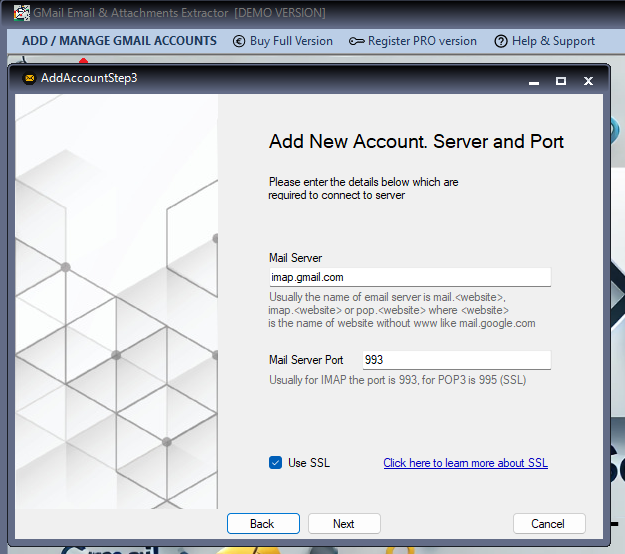
Click Next to select the IMAP protocol (recommended), then click Next again — the Gmail mail server settings are filled in automatically.

Selecting IMAP
Pre-filled server settings

4

Enter your email and App Password

Enter your Gmail address and your App Password — not your regular Gmail password, but a dedicated password for third-party applications.

⚠ How to get an App Password
Go to myaccount.google.com/apppasswords, sign in with your Google account and generate a new App Password. Make sure 2-Step Verification is enabled on your Google account first.

Entering the App Password

5

Test the connection and add the account

Click TEST CONNECTION to verify that everything works. If the connection is successful, click ADD to save the account in the program.

Testing the connection

6

Select the account and choose a folder

From the main screen go to ADD GMAIL ACCOUNTS → ACCOUNTS and select the account you just created. After a few seconds your Gmail folders will appear on the left. Click a folder (e.g. INBOX) and wait for it to load.

Selecting an account from the menu
Gmail folders and Extract Data button

7

Set filters and extract your data

Click EXTRACT DATA to open the configuration window. At the top you will find date-range filters; on the right you can choose what to extract (sender, recipient, subject, body, attachments…). Set the destination CSV file and the attachments folder, then click EXTRACT DATA again.

Filters and extraction window

✓

Extraction complete!

After a few seconds (or minutes, depending on the number of emails selected) you will find the CSV file with all the extracted data on your desktop, along with a folder containing the attachments already organised by date received.

Extracted CSV file and attachments on the desktop

Demo vs PRO

Need to scan more than 50 emails?

The free version allows you to scan up to 50 emails at a time. With the PRO version there are no limits: extract data from entire inboxes with thousands of messages in a single run.

Get PRO Version

Emails scannable 50 Demo Unlimited PRO
Advanced filters ✓ ✓
Export attachments ✓ ✓
Data stays on your PC ✓ ✓

Already purchased a PRO licence?

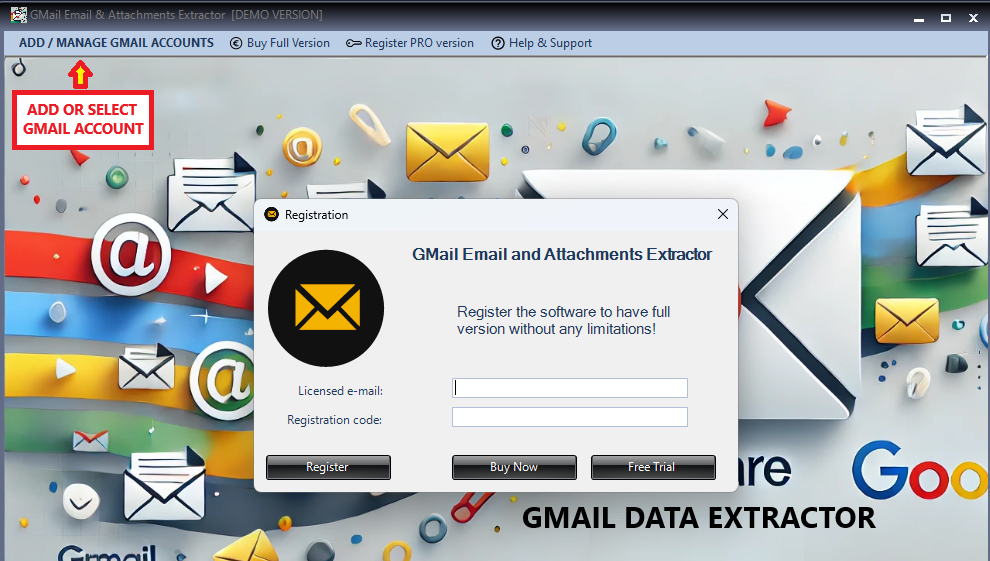
After purchase you will receive a registration code by email. Open it inside the program by clicking REGISTER PRO VERSION and enter your email address and code to activate the full version.

PRO registration window

Ready to get started?

Download Gmail Extractor for free

30-second install · No registration required · Data always on your PC

⬇ Free Download
Get PRO

Copyright © 2026 Estrattoredati.Com | Terms & Conditions | Refund Policy